The Container Playground is a containerized web application that allows the user to interact with our container without the need for writing code. Currently, this application supports PII redaction in text and files, and it can also generate sample code for the user if they choose to interact with Limina’s REST API. It aims to be a self-hosted version of the Limina Plaground that is available on our Customer Portal.

Getting the Container Playground

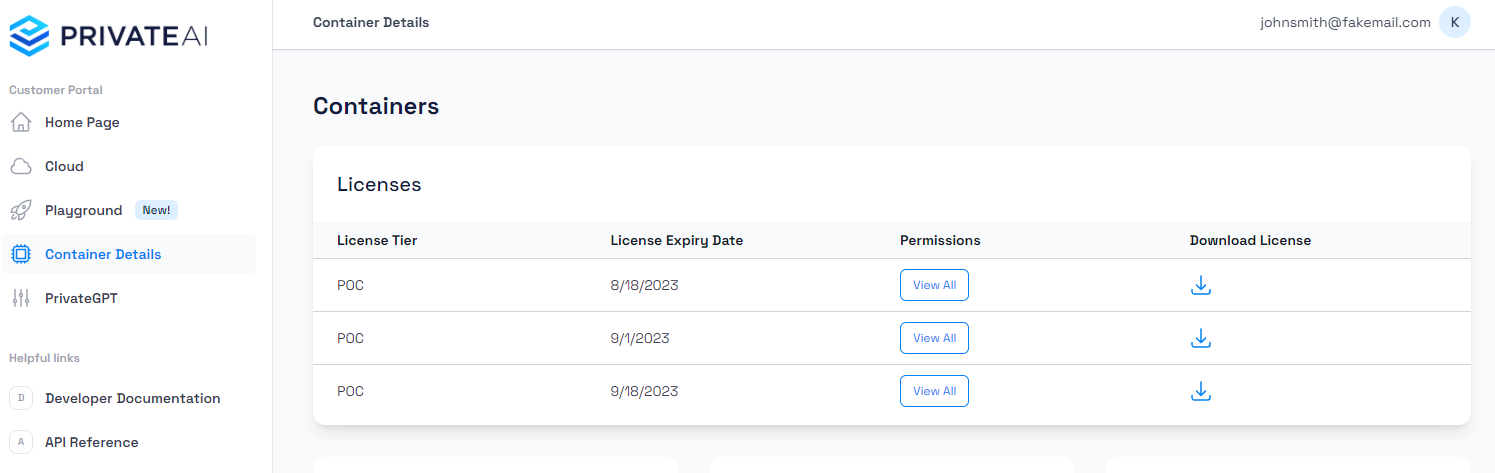
The Container Playground image is hosted on the same container registry as our main container. If you already have a customer portal account with us and have a license to deploy Limina’s containers locally, then you can use the Docker credentials that are present in the portal to gain access to the Limina Container Playground image. Where to find the licenses on Limina's Customer Portal If you wish to host Limina locally, please contact us to get a license. If you prefer to use our Cloud API, you can get started right away by getting an API key through our portal. Once you have the credentials ready, you can simply login with the following command:
Docker Command
docker login -u <username> -p  <password> crprivateaiprod.azurecr.io
Once you are logged in, you can simply run the following command to download the image:
Docker Command
docker pull crprivateaiprod.azurecr.io/container-ui:latest

Setting up the Container Playground

There are various different ways to setup the Container Playground image. However, we will be focusing on 2 main ones in the guide. These 2 ways are:
  1. Setting up the Container Playground as a standalone app
  2. Setting up the Container Playground together with the Limina container

1. Setting up the Container Playground as a standalone app

This setup covers the cases where the main container is already deployed separately or the plan is to deploy the Container Playground and the Limina container separately for better scalability.

Container Playground running together with the main container on the same machine

In this case, we are assuming that the Container Playground will be running on the same machine as the Limina container. Currently, this configuration is the default one, so you can just simply start up the container with the following command:
Docker Command
docker run --rm --network host -it crprivateaiprod.azurecr.io/container-ui:latest
You can access the app using the http://localhost:3000 address. This setup assumes that the Limina container is running and accessible at the http://localhost:8080 address.

Container Playground running on a different machine

In this case, we are assuming that there is a Limina container deployed somewhere and the Container Playground is being set up separately to interact with it. First, if the Limina container endpoints are not protected (i.e. no authentication required), then you can simply use the following command to set up the Container Playground:
Docker Command
docker run \
    --rm \
    -p 3000:3000 \
    -e AUTH_URL=<the canonical URL of where the container UI is deployed> \
    -e AUTH_SCRET=openssl rand -base64 32 \ # Replace with outputted string
    -e PAI_API_TEXT_ENDPOINT=<the URL to the /process/text endpoint> \
    -e PAI_API_TEXT_NER_ENDPOINT=<the URL to the /ner/text endpoint> \
    -e PAI_API_FILE_ENDPOINT=<the URL to the /process/files/base64 endpoint> \
    -it crprivateaiprod.azurecr.io/container-ui:latest
Here, we are simply pointing the setup to the correct address so it can successfully communicate with the deidentification service. However, if the deidentification service endpoints are protected, then you can set up the Container Playground in the following way:
Docker Command
docker run \
    --rm \
    -p 3000:3000 \
    -e AUTH_URL=openssl rand -base64 32 \  # Replace with outputted string
    -e AUTH_SECRET=<the cananonical url> \
    -e PAI_API_TEXT_AUTH=1 \
    -e PAI_API_FILE_AUTH=1 \
    -e PAI_API_TEXT_NER_AUTH=1 \
    -e PAI_API_TEXT_AUTH_HEADER=<text endpoint authentication header name, e.g. "x-api-key"> \
    -e PAI_API_TEXT_NER_AUTH_HEADER=<NER endpoint authentication header name, e.g. "x-api-key"> \
    -e PAI_API_FILE_AUTH_HEADER=<file endpoint authentication header name, e.g. "x-api-key"> \
    -e PAI_API_TEXT_KEY=<ner endpoint API key> \
    -e PAI_API_TEXT_NER_KEY=<text endpoint API key> \
    -e PAI_API_FILE_KEY=<file endpoint API key> \
    -e PAI_API_TEXT_ENDPOINT=<the URL to the /process/text endpoint> \
    -e PAI_API_TEXT_NER_ENDPOINT=<the URL to the /ner/text endpoint> \
    -e PAI_API_FILE_ENDPOINT=<the URL to the /process/files/base64 endpoint> \
    -it crprivateaiprod.azurecr.io/playground:latest
NOTE: Currently, the Container Playground only supports the API key authentication where the credentials are passed in the request header. To use the Container Playground with the Limina Community API Key, you can use the following:
Docker Command
docker run \
    --rm \
    -p 3000:3000 \
    -e AUTH_URL=openssl rand -base64 32 \
    -e AUTH_SECRET=http://localhost:3000 \
    -e PAI_API_TEXT_AUTH=1 \
    -e PAI_API_TEXT_NER_AUTH=1 \
    -e PAI_API_FILE_AUTH=1 \
    -e PAI_API_TEXT_AUTH_HEADER=x-api-key \
    -e PAI_API_TEXT_NER_AUTH_HEADER=x-api-key \
    -e PAI_API_FILE_AUTH_HEADER=x-api-key \
    -e PAI_API_TEXT_KEY=<Community API Key> \
    -e PAI_API_TEXT_NER_AUTH_KEY=<Community API Key> \
    -e PAI_API_FILE_KEY=<Community API Key> \
    -e PAI_API_TEXT_ENDPOINT=https://api.private-ai.com/community/v4/process/text \
    -e PAI_API_TEXT_NER_ENDPOINT=https://api.private-ai.com/community/v4/ner/text \
    -e PAI_API_FILE_ENDPOINT=https://api.private-ai.com/community/v4/process/files/base64 \
    -it crprivateaiprod.azurecr.io/playground:latest

2. Setting up the Container Playground together with the Limina container

This setup covers the use case where the Contaier Playground is setup / deployed together with the Limina container on the same machine. It assumes that docker compose is used for this setup. In this case, the most important point is to correctly set up the communication between the Container Playground and the Limina container. Following is an example compose.yml file that demonstrates how to achieve this:
Yaml
services:
  container_playground:
    container_name: container_playground
    image: crprivateaiprod.azurecr.io/playground:latest
    ports:
      - 3000:3000
    networks:
      - deid
    environment:
      - AUTH_URL=http://localhost:3000 canonical URL of the container-ui #Replace with canonical URL
      - AUTH_SECRET=openssl rand -base64 32 # Replace with outputted string
      - PAI_API_TEXT_ENDPOINT=http://deid:8080/process/text
      - PAI_API_TEXT_NER_ENDPOINT=http://deid:8080/ner/text
      - PAI_API_FILE_ENDPOINT=http://deid:8080/process/files/base64

  deid:
    container_name: deid
    image: crprivateaiprod.azurecr.io/deid:cpu # version 4.0.0 or later is required
    ports:
      - 8080:8080
    volumes:
      - </path/to/your/license/file.json>:/app/license/license.json
    networks:
      - deid

networks:
  deid:
    network_name: deid
One important thing to note here is the endpoints. Instead of using localhost, we are passing the name of the container (i.e. deid), which is an important step to make sure that both containers can communicate.

Configuration Options

Currently, the Container Playground application can be configured using the following environment variables:
Environment VariableDescription
PORTThe port that the application is listening on in the container. Defaults to 3000.
AUTH_SECRETRequired The string that is used for encrypting the session token
AUTH_URLThe canonical URL of the Container UI
PAI_API_TEXT_ENDPOINTThe URL of the /process/text endpoint of the Limina container. Defaults to http://localhost:8080/process/text
PAI_API_TEXT_NER_ENDPOINTThe URL of the /ner/text endpoint of the Limina container. Defaults to http://localhost:8080/ner/text
PAI_API_FILE_ENDPOINTThe URL of the /process/files/base64 endpoint of the Limina container. Defaults to http://localhost:8080/process/files/base64.
PAI_API_TEXT_AUTHDetermines whether API authentication is required for the /process/text endpoint. Defaults to 0, which means that it is turned off. If your /process/text endpoint requires authentication, please set this to 1.
PAI_API_TEXT_NER_AUTHDetermines whether API authentication is required for the /ner/text endpoint. Defaults to 0, which means that it is turned off. If your /ner/text endpoint requires authentication, please set this to 1.
PAI_API_FILE_AUTHDetermines whether API authentication is required for the /process/files/base64 endpoint. Defaults to 0, which means that it is turned off. If your /process/files/base64 endpoint requires authentication, please set this to 1.
PAI_API_TEXT_AUTH_HEADERThis is used if PAI_API_TEXT_AUTH is set to 1. This is the request header that the API key is sent with.
PAI_API_TEXT_NER_AUTH_HEADERThis is used if PAI_API_TEXT_NER_AUTH is set to 1. This is the request header that the API key is sent with.
PAI_API_FILE_AUTH_HEADERThis is used if PAI_API_FILE_AUTH is set to 1. This is the request header that the API key is sent with.
PAI_API_TEXT_KEYThis is used if PAI_API_TEXT_AUTH is set to 1. This is the API key that is used for the /process/text endpoint
PAI_API_TEXT_NER_KEYThis is used if PAI_API_TEXT_NER_AUTH is set to 1. This is the API key that is used for the /ner/text endpoint
PAI_API_FILE_KEYThis is used if PAI_API_FILE_AUTH is set to 1. This is the API key that is used for the /process/files/base64 endpoint

Container Playground - Text Processing with Automatic Updates

If you wish to automatically redact text as you type, you can enable the “Auto Update Mode”. This only applies to the text redaction component on the Container Playground. You can do so by adding the auto=true query parameter at the end of the browser URL. Here is an example:
URL
http://localhost:3000/text?auto=true