

This guide is meant for ADVANCED users who are looking to customize their ECS components in their Limina deployment. This guide walks through a security focused, component by component deployment and is NOT recommended for new users. If you are looking for the quickest way to deploy Limina on AWS, please have a look at either our EKS Guide or our Automated ECS Guide
1. Prerequisites
Before you begin, you will need to install the AWS CLI and Docker tools. Please also see our installation documentation for more information on how to retrieve the Limina docker image.2. Create VPC
AWS resources such as ECS are connected to a virtual private cloud. In order to segregate the Limina cluster from the rest of your cloud deployment, it is preferable to create a new VPC. Check What is Amazon VPC for more details, or follow the instructions below.The default VPC in AWS has special properties, and not all of this guide may be relevant. Check Default VPCs for more information.
1
Navigate to the VPC Management Console.
2
Click “Create VPC”.
3
Select “VPC and more”.
4
Enter an Auto-generate tag.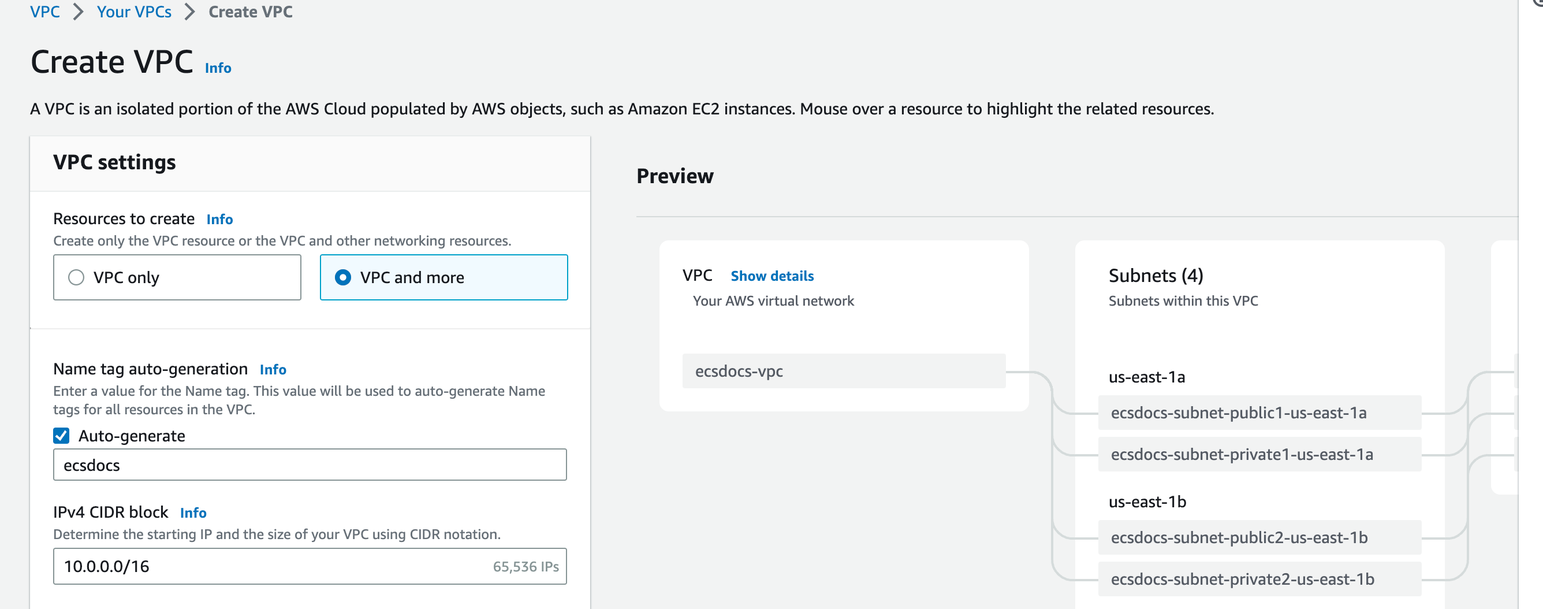
5
Leave all other defaults.
6
Click “Create VPC”.
Creation of the individual subnets, route tables, and network connections are beyond the scope of this article.
3. Policy Creation
In order to create and manage the Limina cluster, we will create a new Policy with the minimum permissions to effectively manage the cluster with a single user.If you have a production environment with segregation of duties, you may not want all permissions in a single policy.
1
Navigate to the IAM Dashboard and click “Policies” on the left side.
2
Click “Create Policy”.
3
Click “Select a service” and search “Elastic Container Registry”.
4
Expand “Actions allowed”, you can select “All Elastic Container Registry actions (ecr:*)”.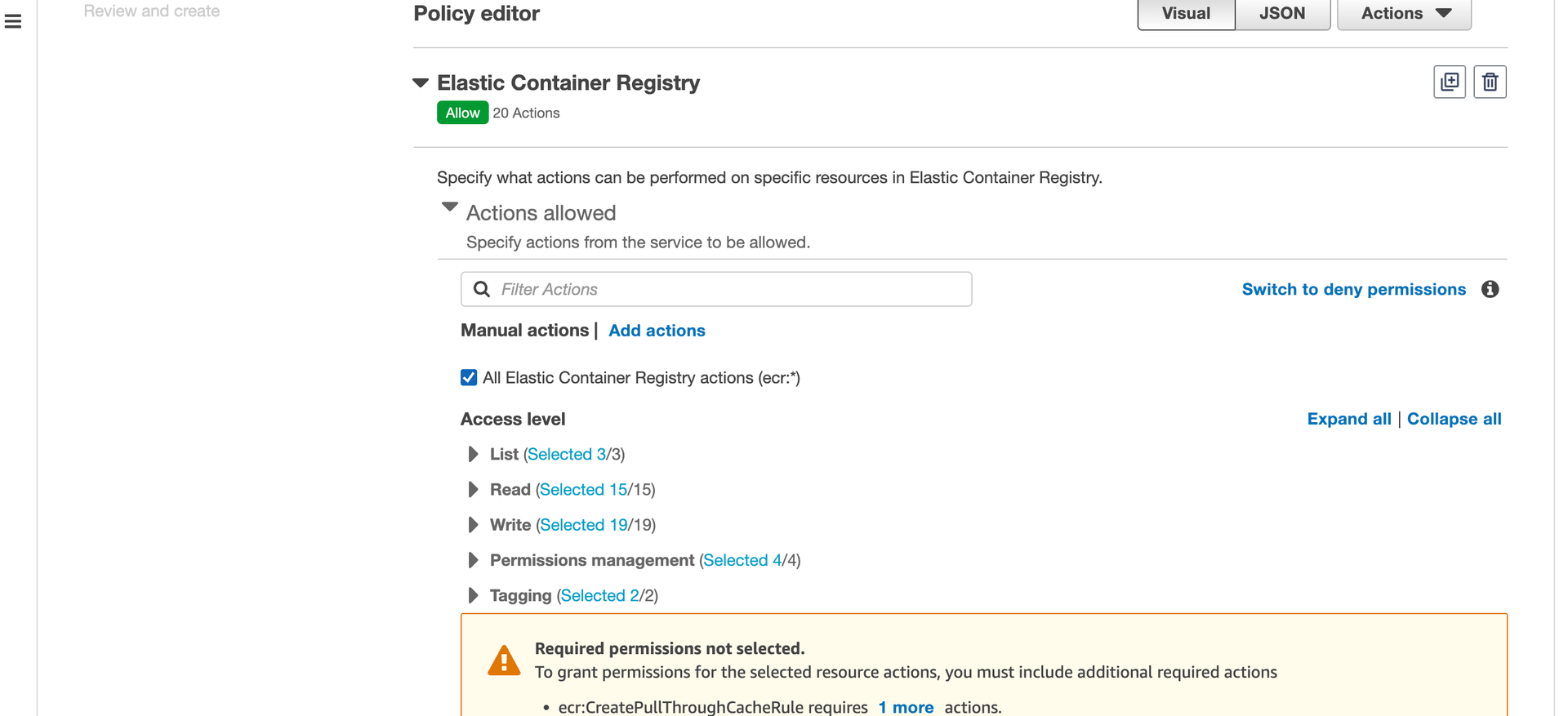
5
Expand “Resources”, select “This account”, “Add ARN” and specify the region your container will be hosted in. For example “us-east-1” or “ca-central-1”. Enter “*” for repository and click “Add ARNs”.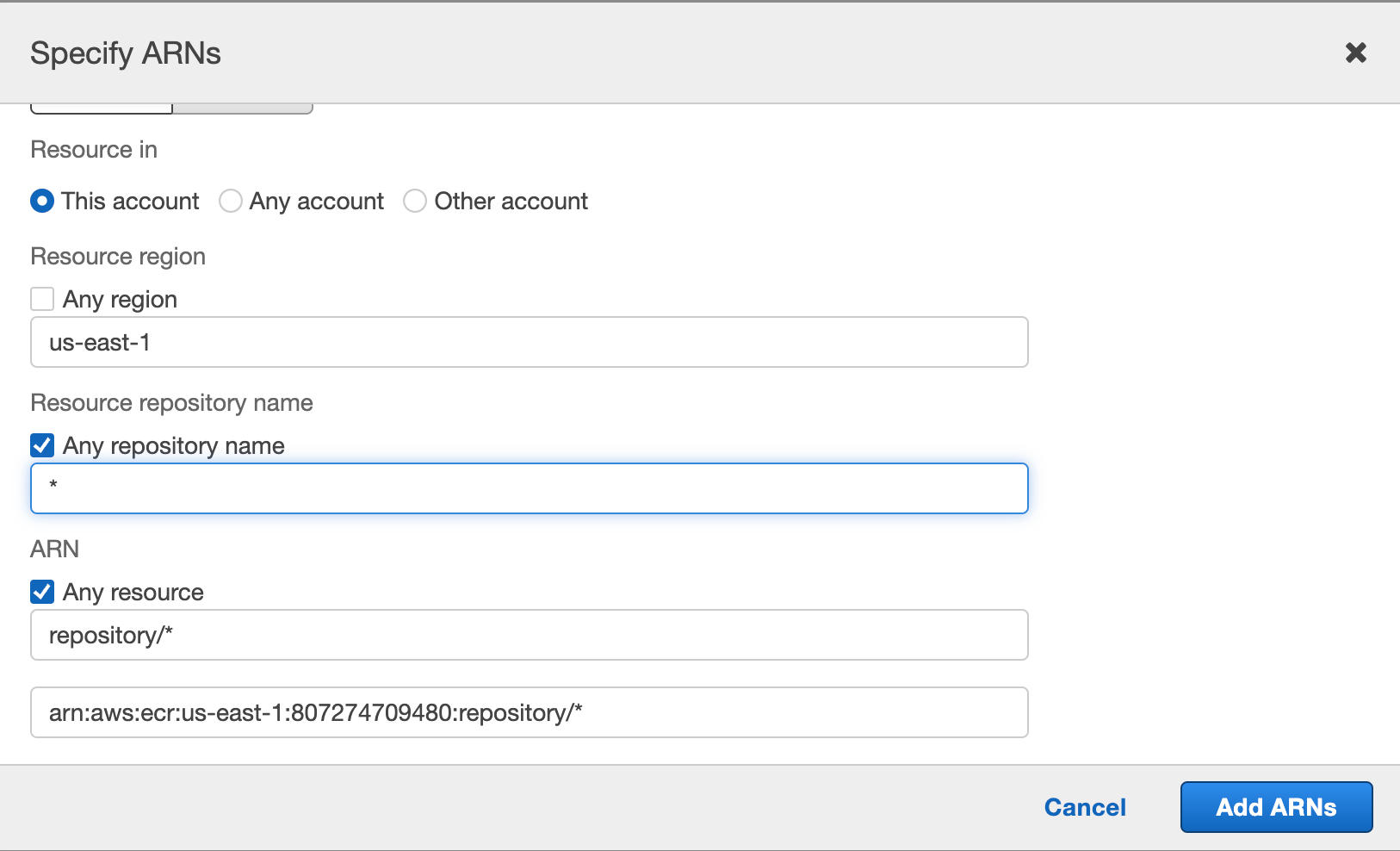
6
Click “Add more permissions” and select the service “IAM”.
7
Expand “List” select “ListInstanceProfilesForRole”.
8
Expand “Read” select “getRole”.
9
Expand “Resources” and select “Any in this account” next to “role”.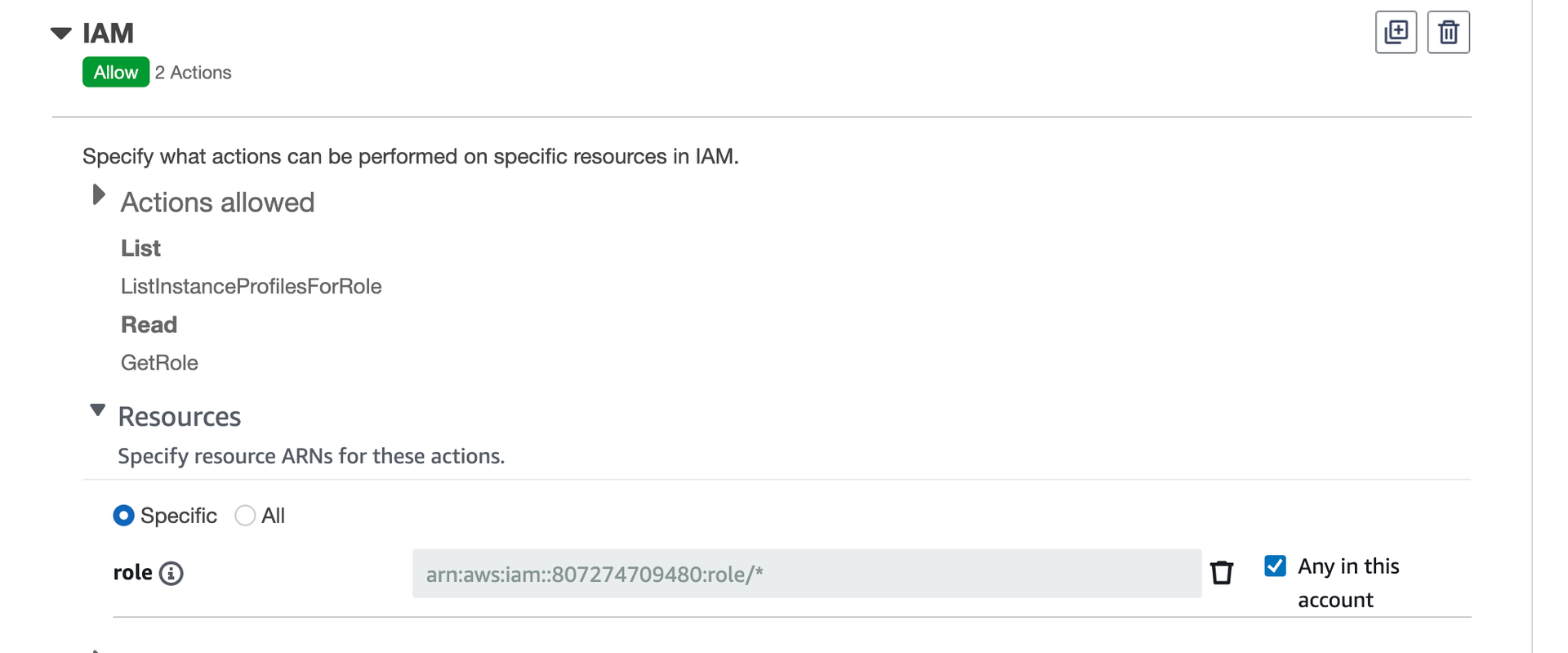
10
Click “Add more permissions” and select the service “CloudFormation”.
11
Expand “List” and select “ListStacks”.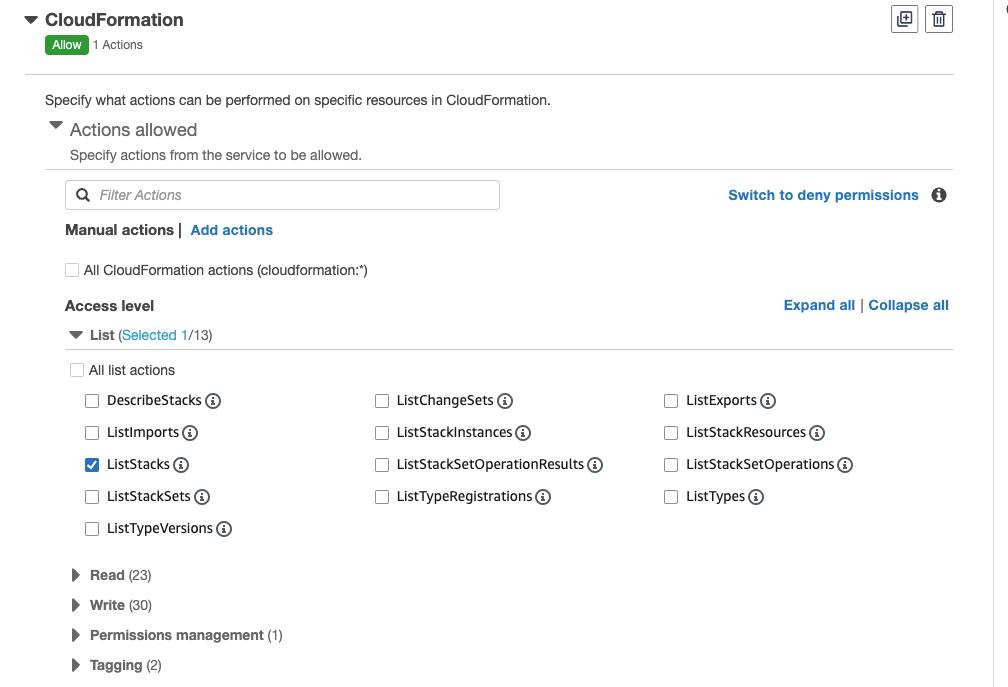
12
Click “Add more permissions” and select the service “EC2 Auto Scaling”.
13
Expand “Tagging” and select “CreateOrUpdateTags”.
14
Expand “Resources” and select “Any in this account” next to “autoScalingGroup”.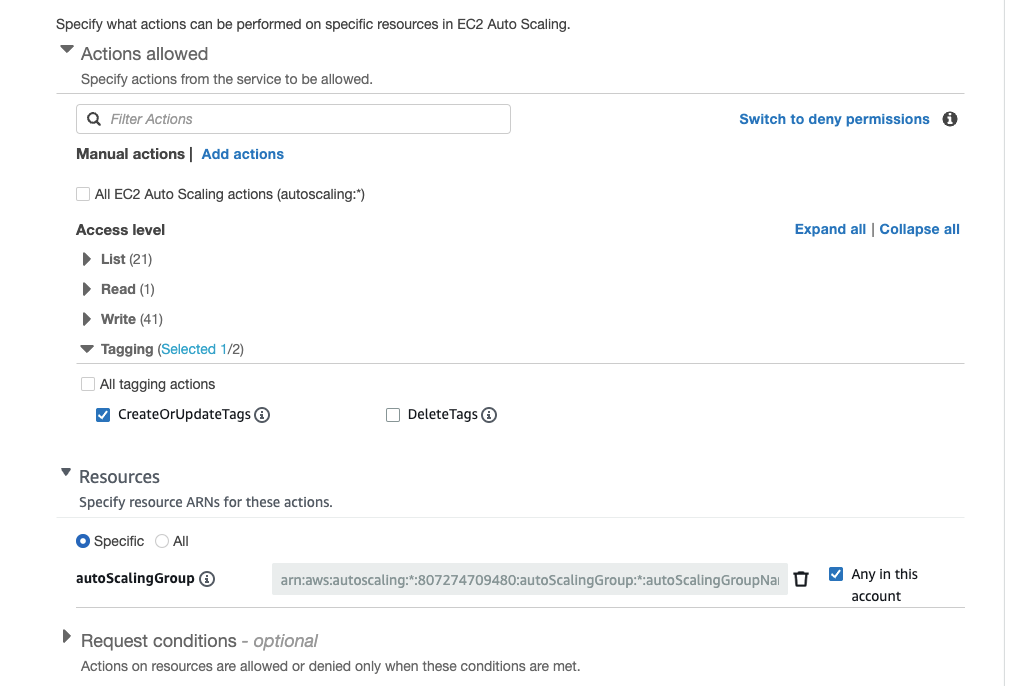
15
Click “Add more permissions” and select “EC2”.
16
Expand “Write” and select “AllocateAddress”, “AuthorizeSecurityGroupEgress”, “CreateLaunchTemplate”, “CreateLaunchTemplateVersion”, “CreateNatGateway”, “ModifyLaunchTemplate”, “RevokeSecurityGroupEgress”, “StartInstances”, “StopInstances”, and “TerminateInstances”.
17
Expand “Tagging” and select “CreateTags”.
18
Expand “Resources” and select “Any in this account” next to the “elastic-ip”, “instance”, “launch-template”, “natgateway”, “security-group”, and “subnet” resources.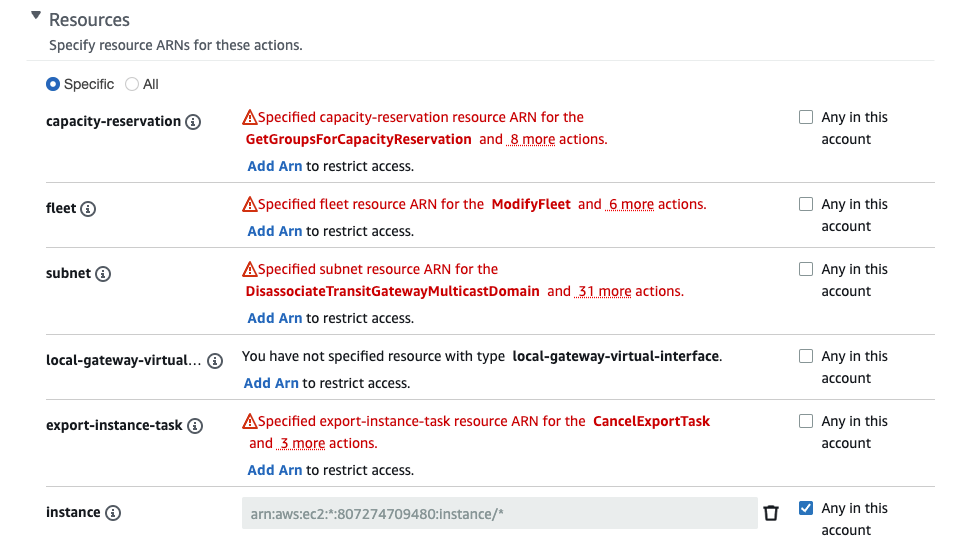
19
Click “Add more permissions” and select “CloudWatch Logs”.
20
Expand “List” and select “DescribeLogStreams”.
21
Expand “Read” and select “GetLogEvents”.
22
Expand “Write” and select “PutRetentionPolicy”.
23
Expand “Resources” and select “Any in this account” next to “log-stream” and “log-group”.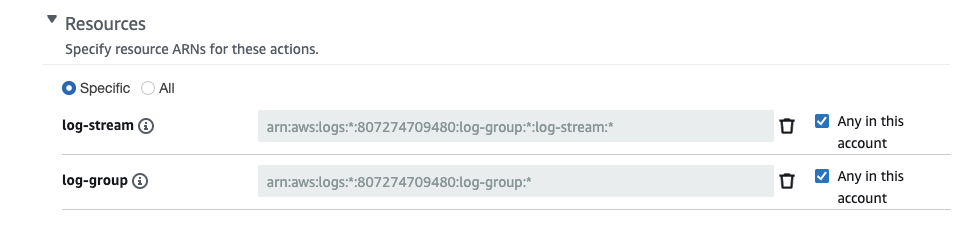
24
Click “Add more permissions” and select “ELB v2”.
25
Expand “Read” and select “DescribeTargetHealth”.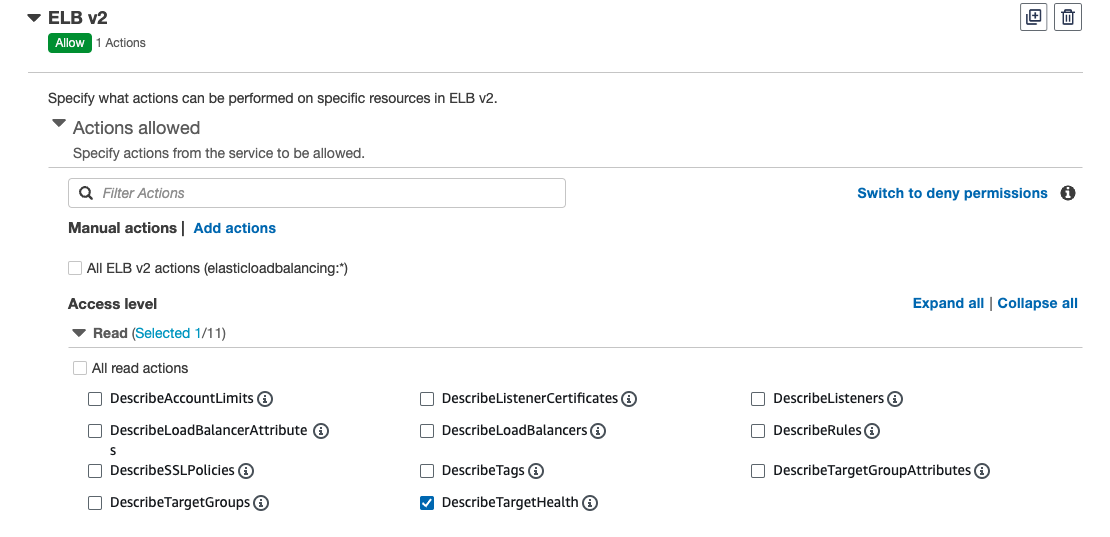
26
Click “Add more permissions” and select “API Gateway”.
27
For “Actions allowed” check “All API Gateway actions”.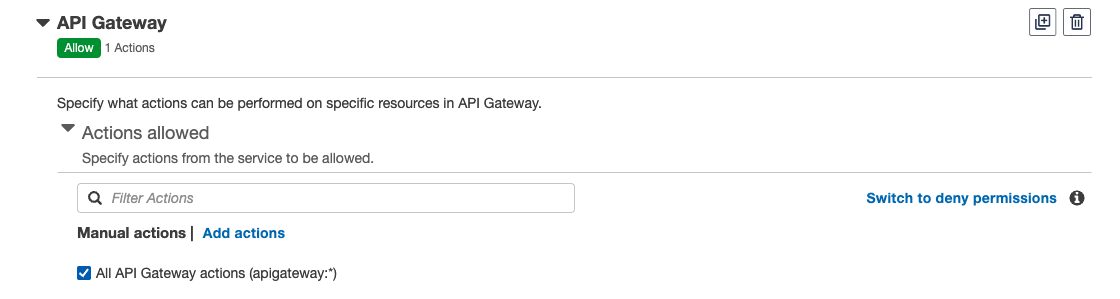
28
Expand “Resources” and select “Any” next to “Account”, “RestApis”, “VpcLinks” and “VpcLink”.
29
Click “Add more permissions” and select “API Gateway V2”.
30
For “Actions allowed” check “All API Gateway V2 actions”.
31
Expand “Resources” and select “Any” next to “Api”, “Apis”, “IntegrationResponses”, “Routes”, and “Stages”.
32
Click “Next”.
33
Add a policy name and description that is representative of the permissions.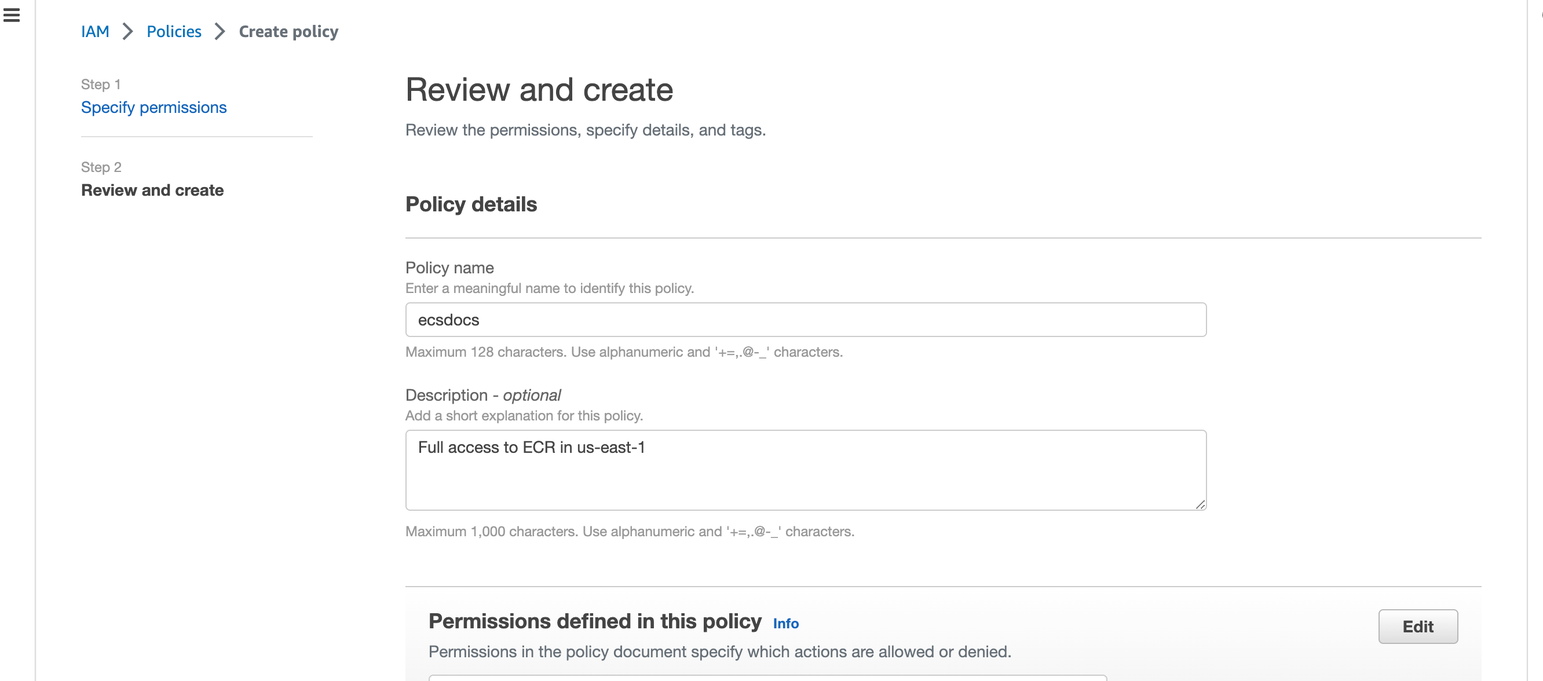
34
Optional - Add tags as required.
35
Click “Create Policy”.
Full Policy
4. Create IAM User
For the purpose of this article, we will use a single user account to create and manage all required Limina cluster resources.For production environments, you will likely want to separate these tasks into several individually named user accounts, or automatically build this environment using infrastructure-as-code checked into source control and deployed via a pipeline.
In a production environment, you will likely want to limit the permissions to ECS and EFS, and not use the “AmazonECS_FullAccess” and “AmazonElasticFileSystemFullAccess” policies directly.
1
Navigate to the IAM Dashboard.
2
Select “Users” from the left bar.
3
Click “Add users” on the right side of the dashboard.
4
Enter a username and select “Provide user access to the AWS Management Console - optional”.
5
Select “I want to create an IAM user”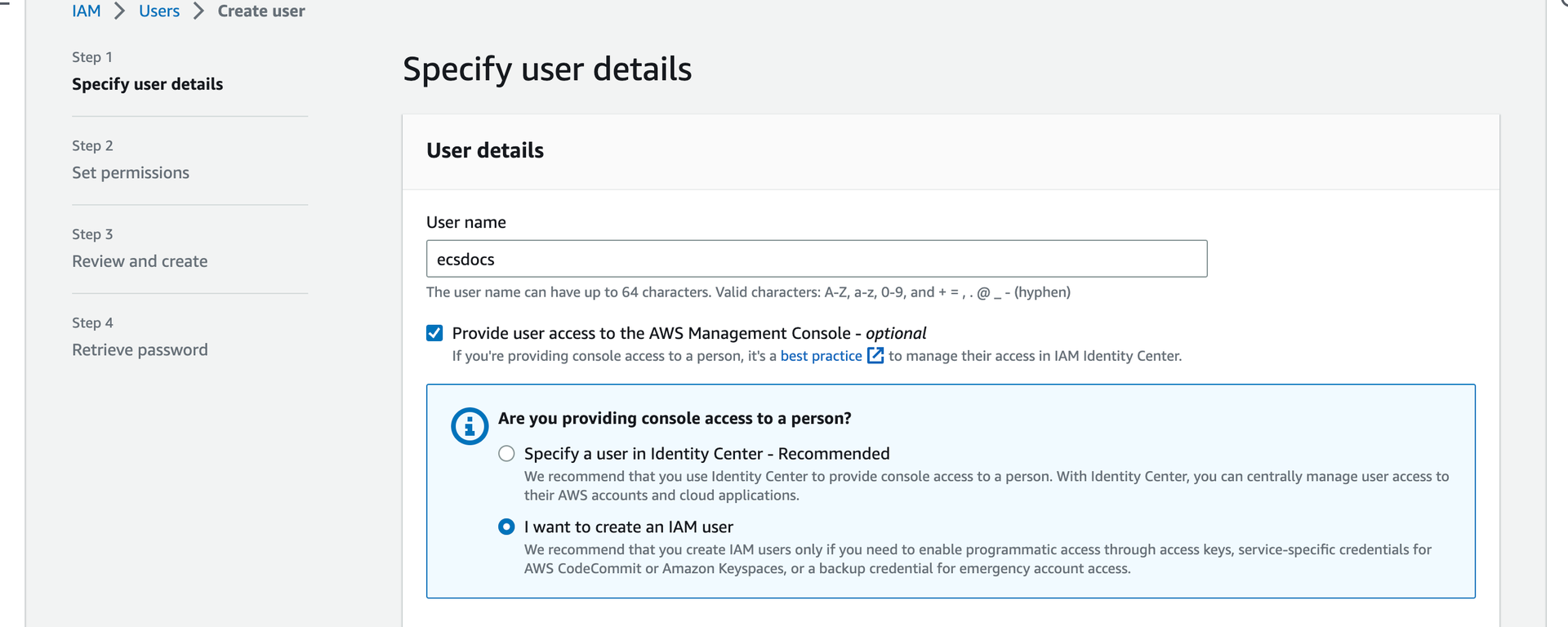
6
Leave the defaults and click “Next”.
7
Select “Attach policies directly” and search for “AmazonECS_FullAccess” and select it.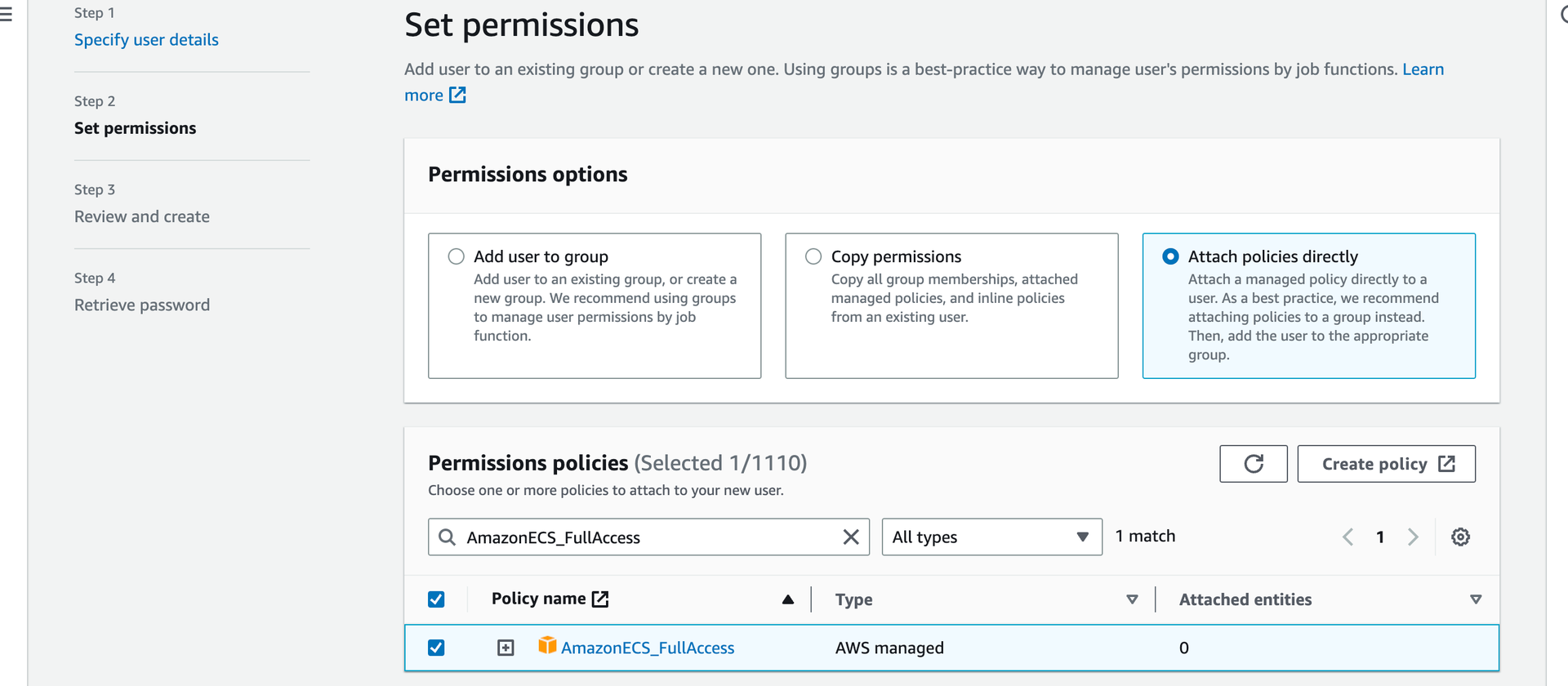
8
Search for “AmazonElasticFileSystemFullAccess” and select it.
9
Also search for the ECR policy we created in the previous section and select it.
10
Click “Next”.
11
Optional - Add tags as required.
12
Click “Create”.
13
Once your user is created and the policies attached to the user, log in to this account to continue the setup.
14
Ensure you change the region to the one entered in the policy in the previous steps.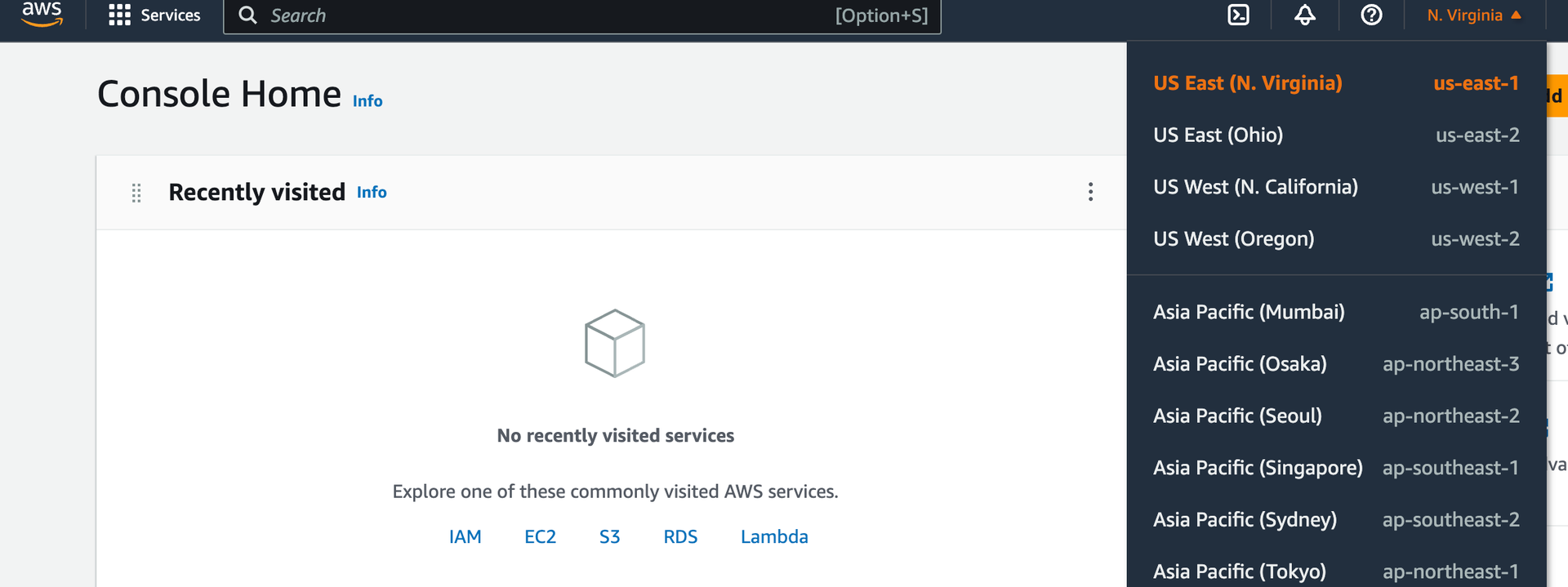
15
Follow the Create key pairs guide to create an SSH key-pair for your account.
It is highly recommended to configure the account with MFA, which is beyond the scope of this article. Check Multi-Factor Authentication for more information.
5. Create ECR Repository and Upload Limina Container
In order for an ECS cluster to start a task, the cluster must have access to the Limina De-identification container. This can be accomplished by pulling the latest Limina container, re-tagging it, and pushing it to the AWS Elastic Container Registry.1
Ensure you are logged into the IAM user from the previous steps.
2
Navigate to the “Elastic Container Registry” dashboard and click “Create repository”.
3
Select “Private”.
4
Enter a name for your repository.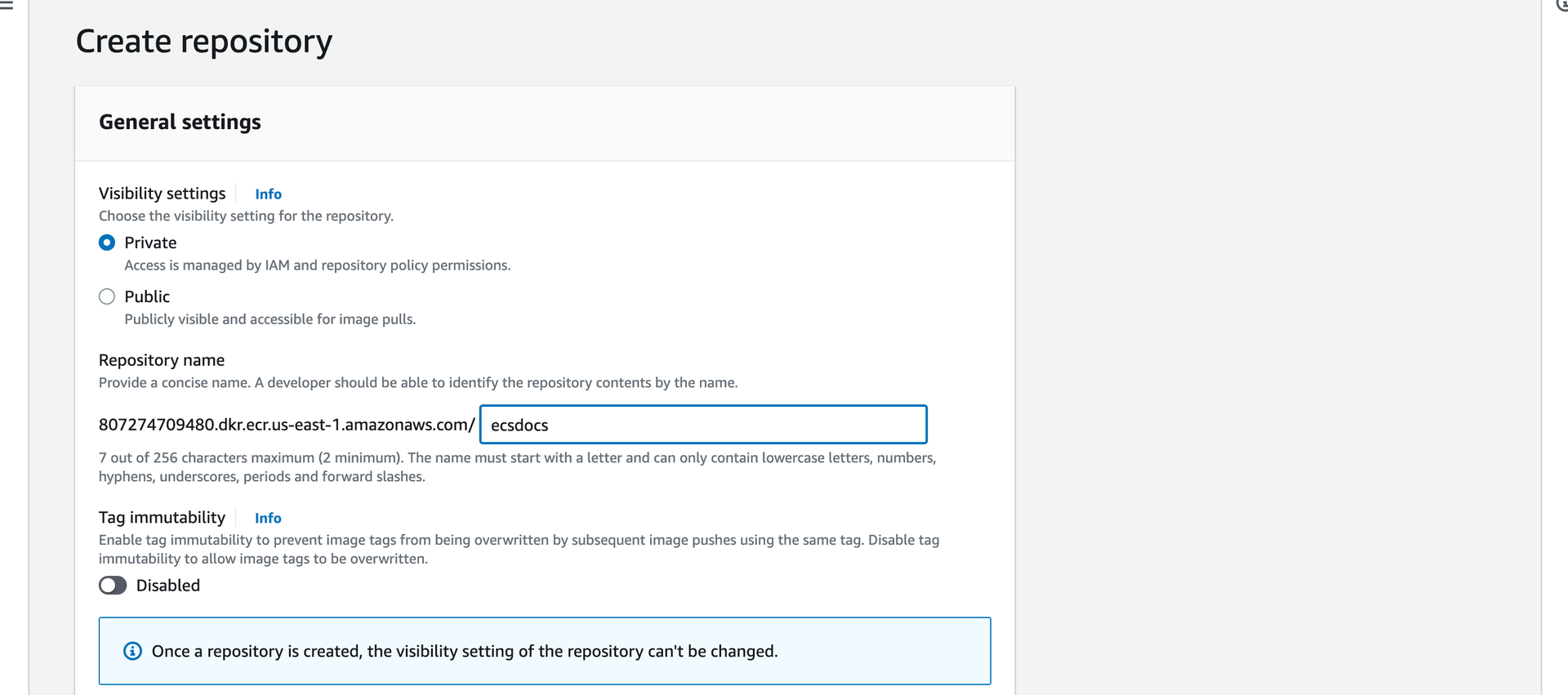
5
Leave all other defaults and click “Create repository”.
6
Select the repository from the list you just created and then click “View push commands” in the top right corner. A pop-up window should appear with copy-and-paste-able commands.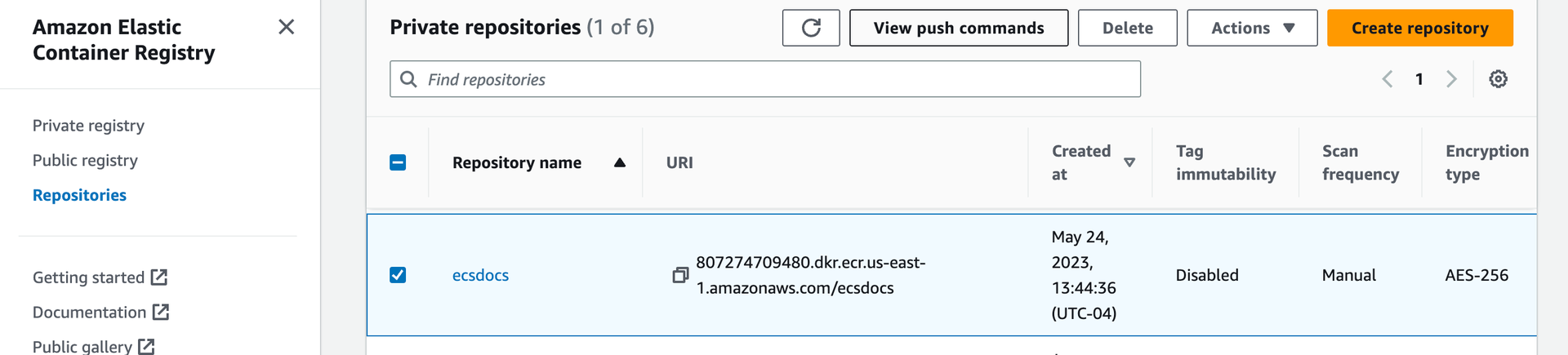
7
Copy the text from the first field under: “Retrieve an authentication token and authenticate your Docker client to your registry”. It should look like this:
AWS Command
8
Run this command at a terminal window.
9
You should see Login Succeeded.
10
Verify that the Limina image is loaded into Docker.
Docker Command
11
Tag the Limina image to be uploaded to your AWS ECR repository.
Docker Command
12
Push the image to the ECR repository.
Docker Command
6. Create Security Groups
In order for the Limina De-identification task to have the correct network connectivity, EC2 Security Groups must be created. These groups will allow inbound and outbound network connectivity for the EC2 host used for the ECS cluster, the EFS endpoint, and the Load Balancer. We will additionally create a security group for an EC2 bastion host, which can be used to managed the cluster, EFS, and provide troubleshooting.If you are running the Limina container in AWS FARGATE alone, some of these steps may not be needed.
1
Navigate to the “EC2” dashboard and select “Security Groups” from the left side. Click “Create security group” to create a security group for the bastion host.
2
Enter the Security group name, Description, and VPC.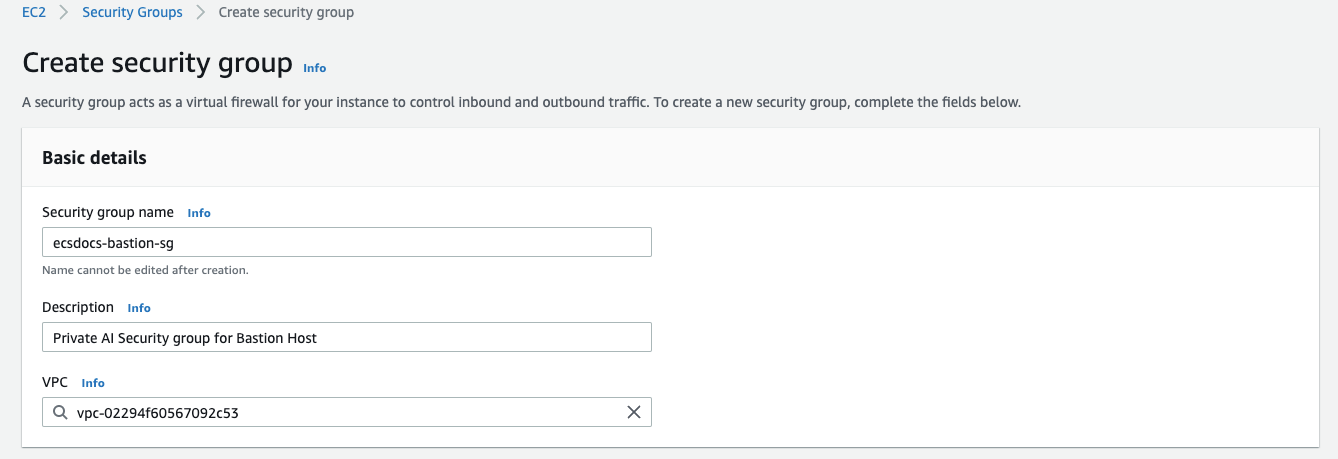
3
Add the following “Inbound rule” to allow SSH access from your current IP address.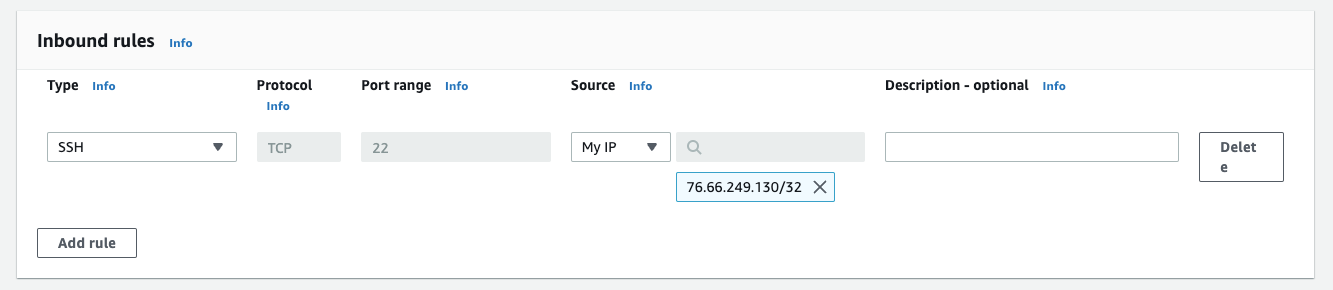
4
Leave the default “Outbound rule”, which provides outbound access to anywhere.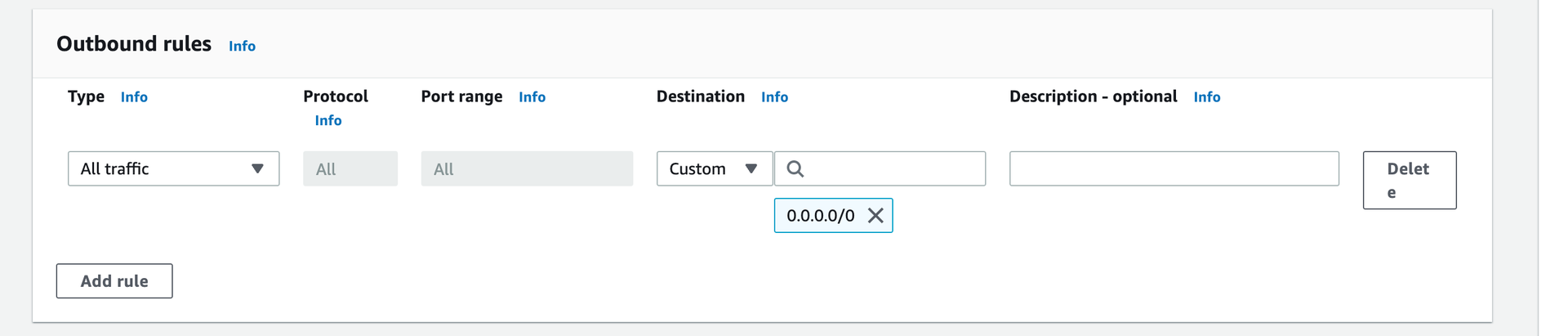
5
Optional - Add tags as required.
6
Click “Create security group”.
7
Navigate to the “Security Groups” dashboard and click “Create security group” again to create a second security group for the ECS hosts.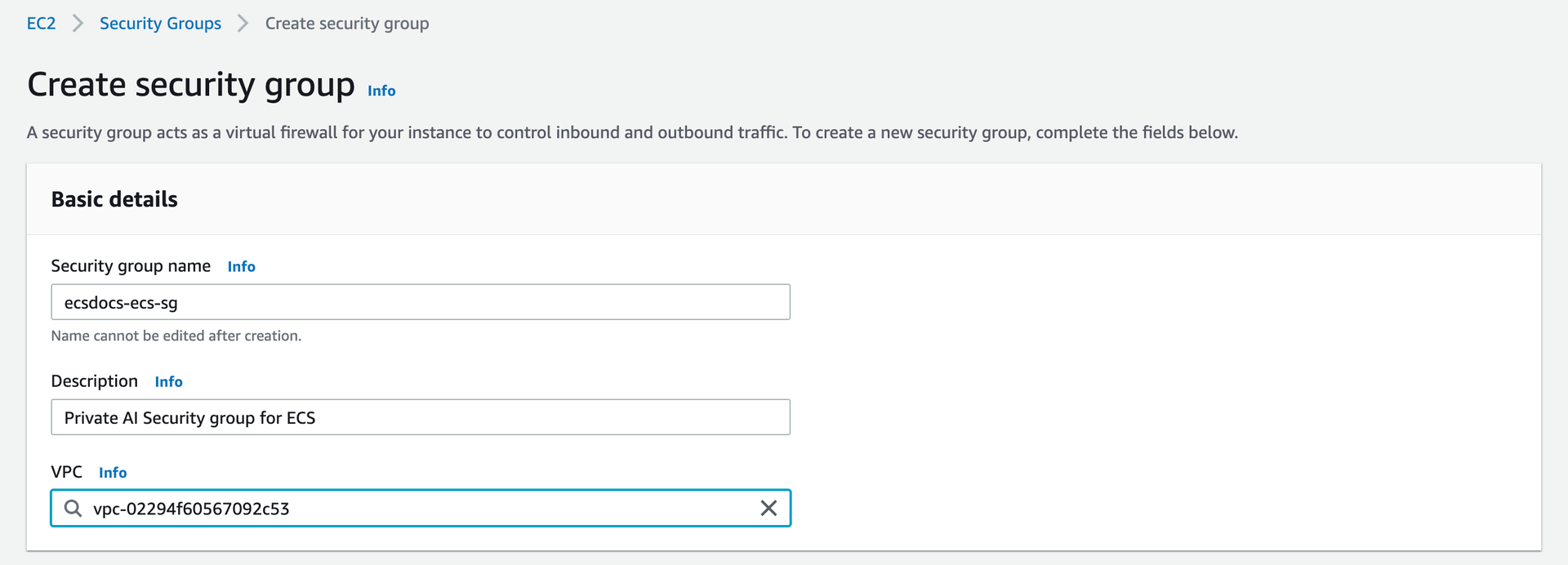
8
Add the following two “Inbound rules”: one for HTTP access to the container, and one for SSH access from inside the VPC.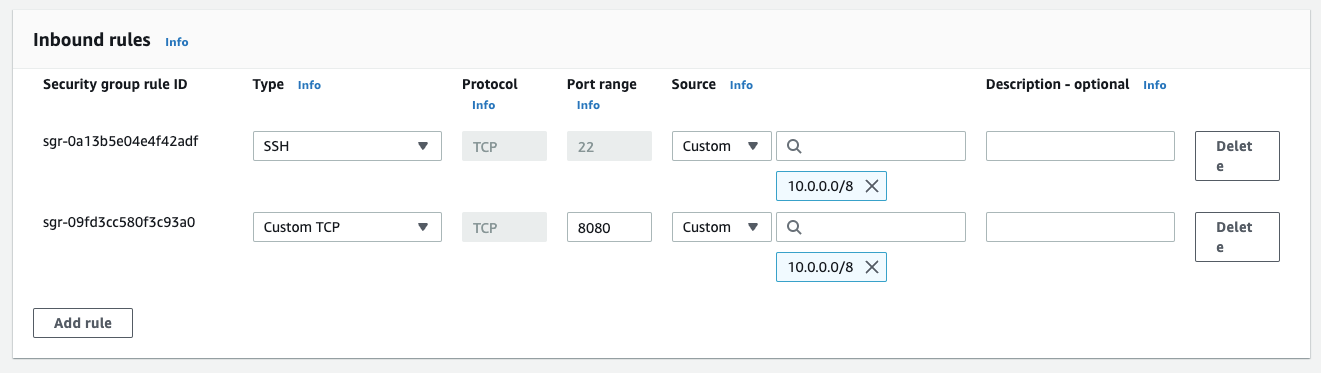
9
Leave the default “Outbound rule”, which provides outbound access to anywhere.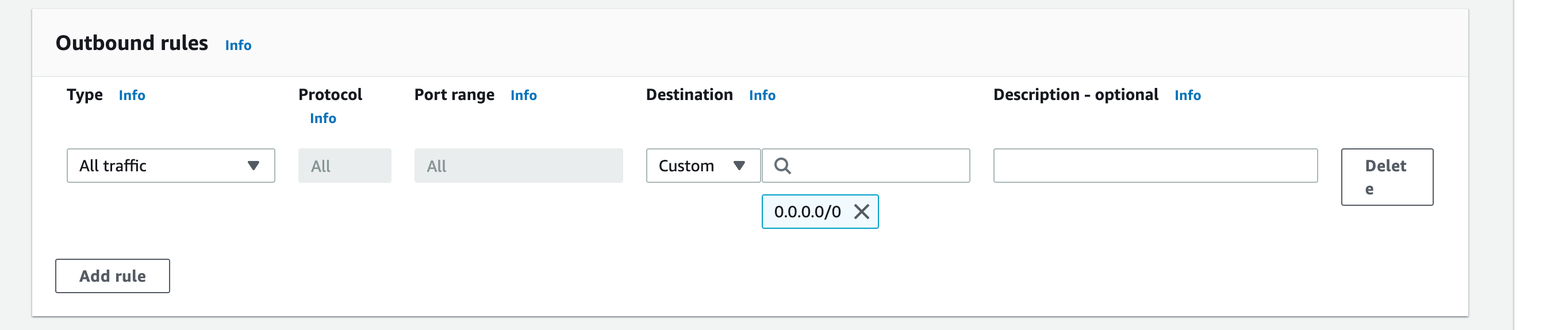
10
Optional - Add tags as required.
11
Click “Create security group”.
12
Navigate to the “Security Groups” dashboard and click “Create security group” again to create a third security group for access to the EFS mounts.
13
Enter the Security group name, Description, and VPC.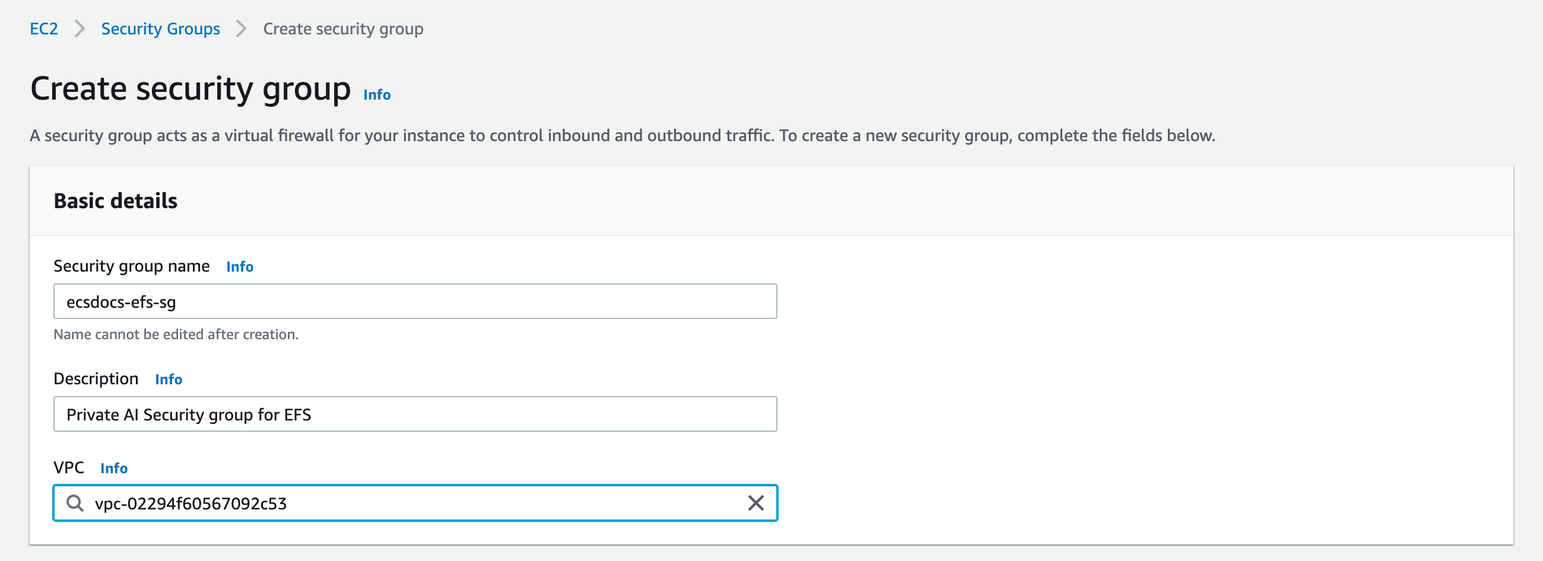
14
Add the following two “Inbound rules”: one to allow access from the ECS cluster to the EFS service and one to allow access from the bastion host to the EFS service.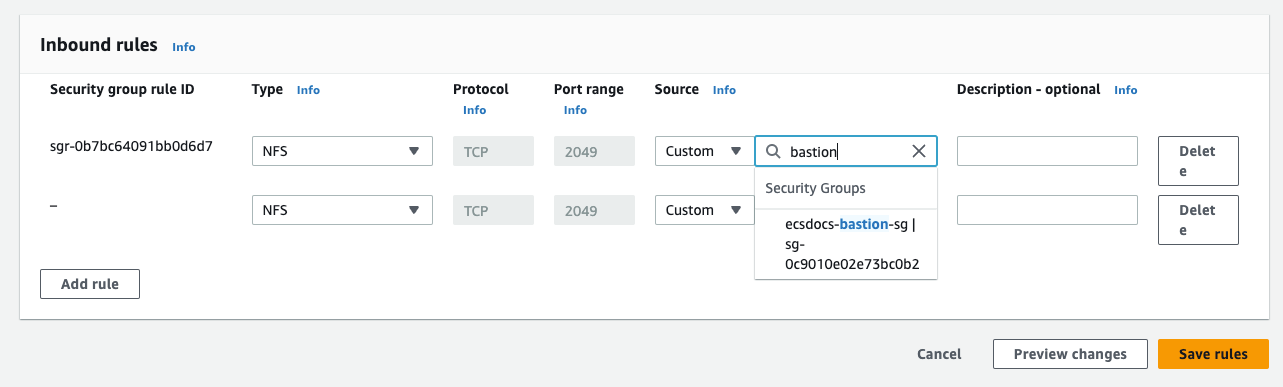
15
Leave the default “Outbound rule”, which provides outbound access to anywhere.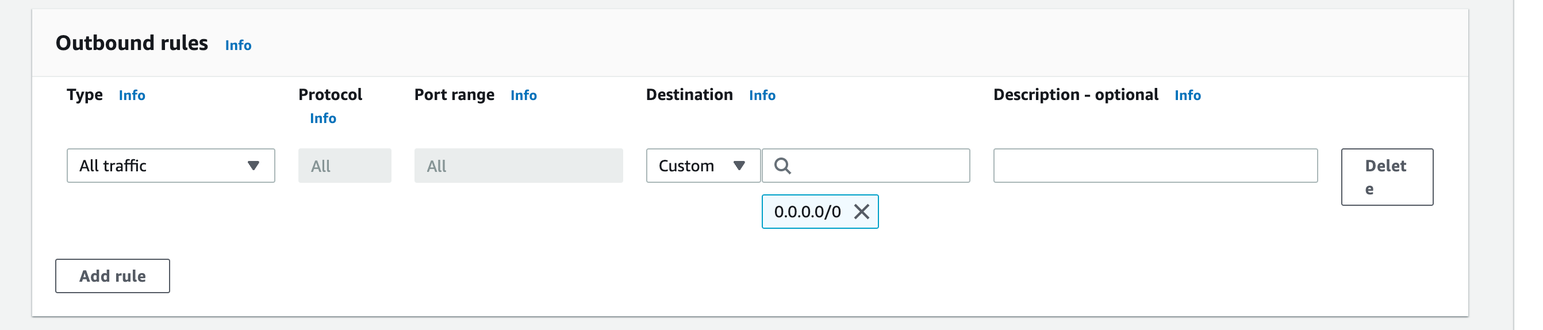
16
Optional: Add tags as required.
17
Click “Create security group”.
18
Navigate to the “Security Groups” dashboard and click “Create security group” again to create a fourth security group for the Load Balancer.
19
Enter the Security group name, Description, and VPC.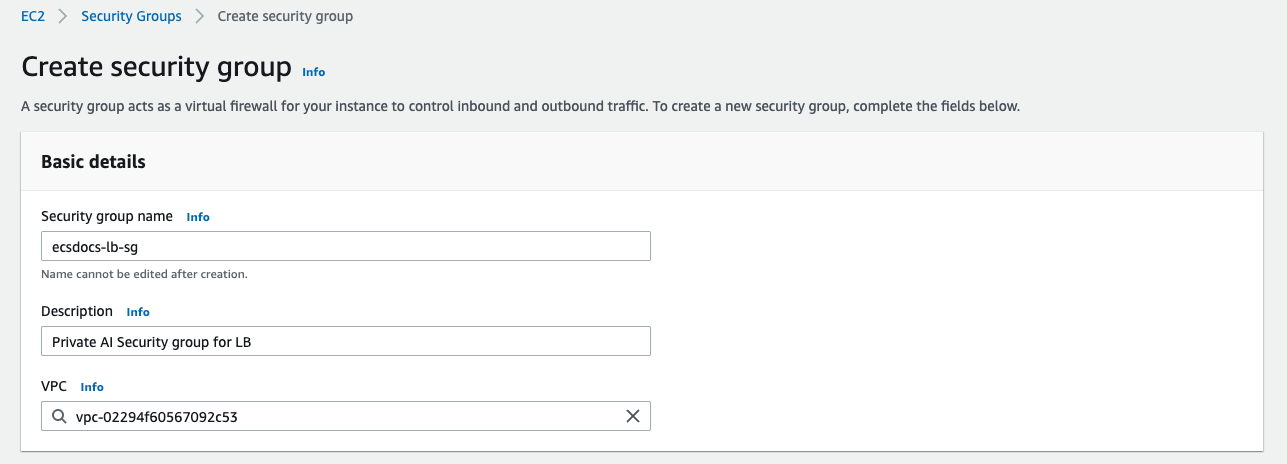
20
Add an “Inbound rule” to allow HTTP access from the VPC CIDR created in a previous section (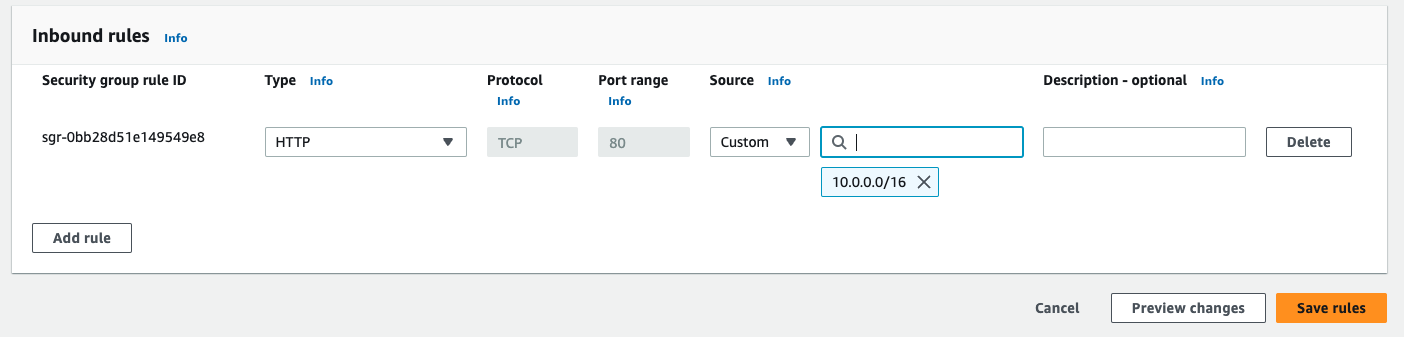
10.0.0.0/16) if you prefer an internal load balancer, or to allow HTTP from the Internet (0.0.0.0/0) if you prefer an internet-facing load balancer.21
Remove the default “Outbound rule” and add a new rule to allow traffic to the instance on port 8080. Set the destination to the ECS security group created previously.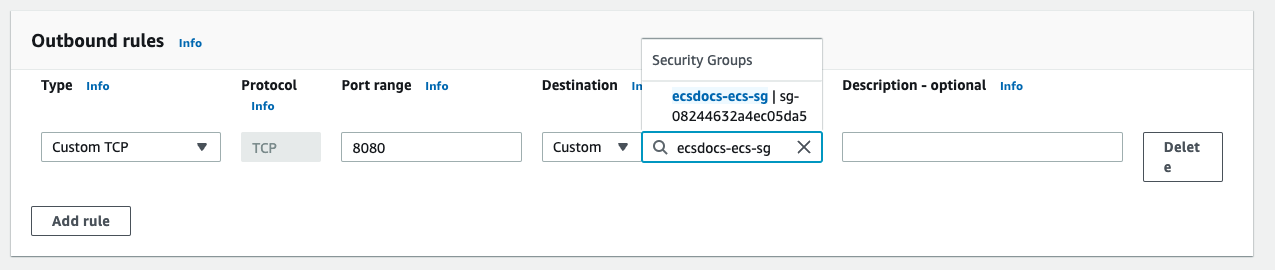
22
Optional: Add tags as required.
23
Search for and select the security group created for the ECS hosts in a previous step.
24
From the bottom panel, select “Inbound rules” and click “Edit inbound rules”.
25
Click “Add rule”.
26
Leave the default “Type” of “Custom TCP”, change the “Port” to 8080, and enter the “Source” of the security group for the load balancer created in a previous step.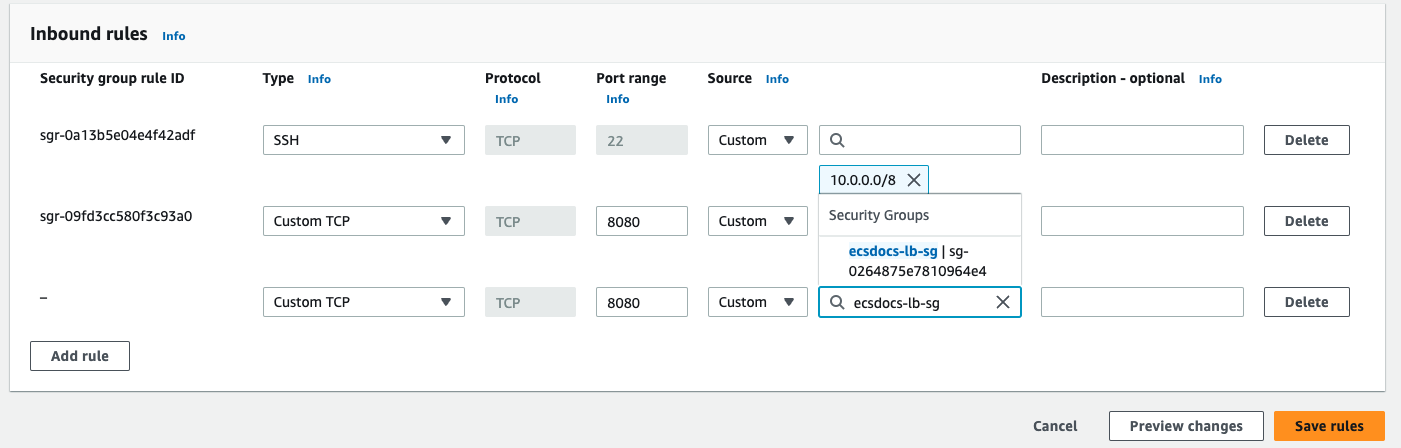
27
Click “Save rules”.
It is recommended for inbound and outbound traffic in a production environment be analyzed by your security team to match with your deployment strategy and risk posture.
7. Create EFS Mount
The Limina De-identification service requires access to a license file on startup. If you are running an ECS cluster, each container must have access to the file. Mounting an EFS resource is one way to ensure the file is available to each container.1
Navigate to the “EFS” dashboard and click “Create file system”.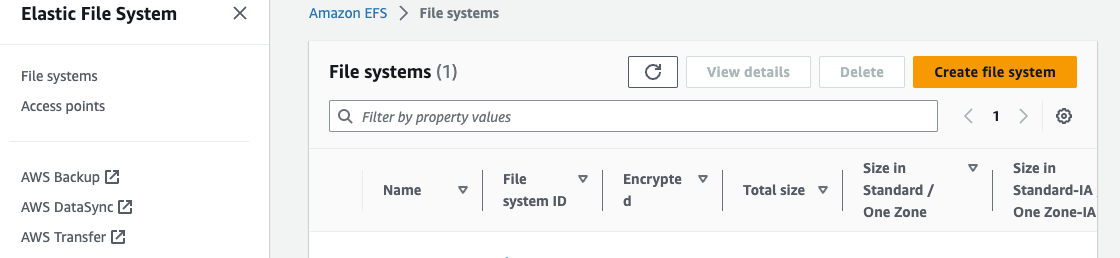
2
Enter a name and select a VPC and then click “Customize”.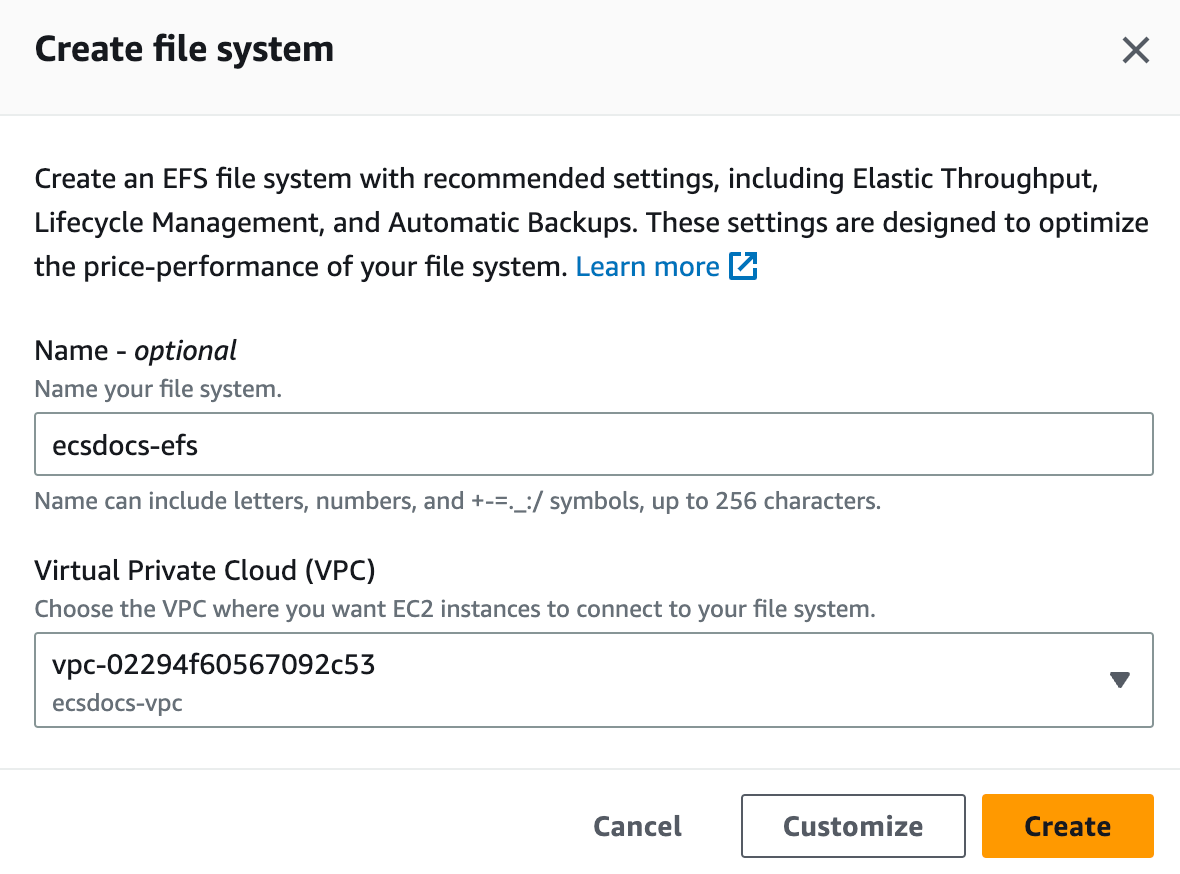
3
For “File System Settings” leave all defaults and click “Next”.
4
For “Network” remove the default security groups add the previously created EFS security group for each Availability zone, and click “Next”.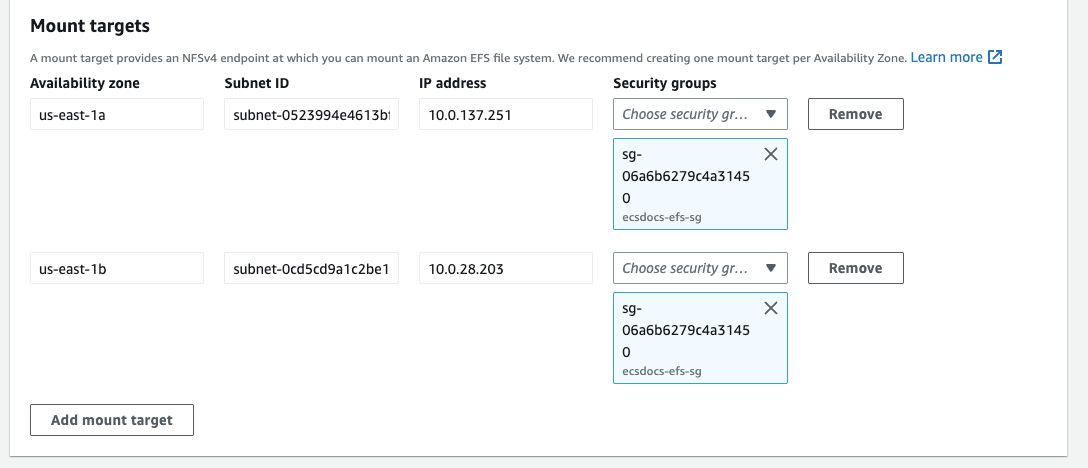
5
Optional - For “File system policy - optional”, leave the default settings and click “Next”.
6
For “Review and create”, click “Create”.
8. Create EC2 Launch Template
In order to provide EC2 hosts for the ECS cluster, an EC2 Launch Template is required.1
Navigate to the “EC2” dashboard and select “Launch Templates” on the left side.
2
Click “Create launch template”.
3
Enter a name and description.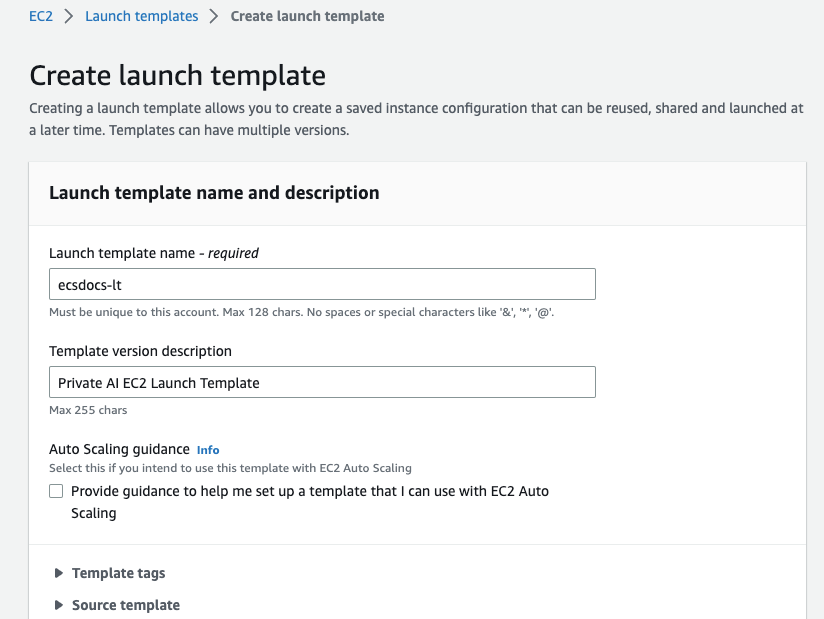
4
Optional - Add template tags.
5
For “Application and OS Images (Amazon Machine Image)” search for Amazon ECS-Optimized Amazon Linux 2023 x86_64. Click the “AWS Marketplace AMIs” tab and click “Select” and “Continue”.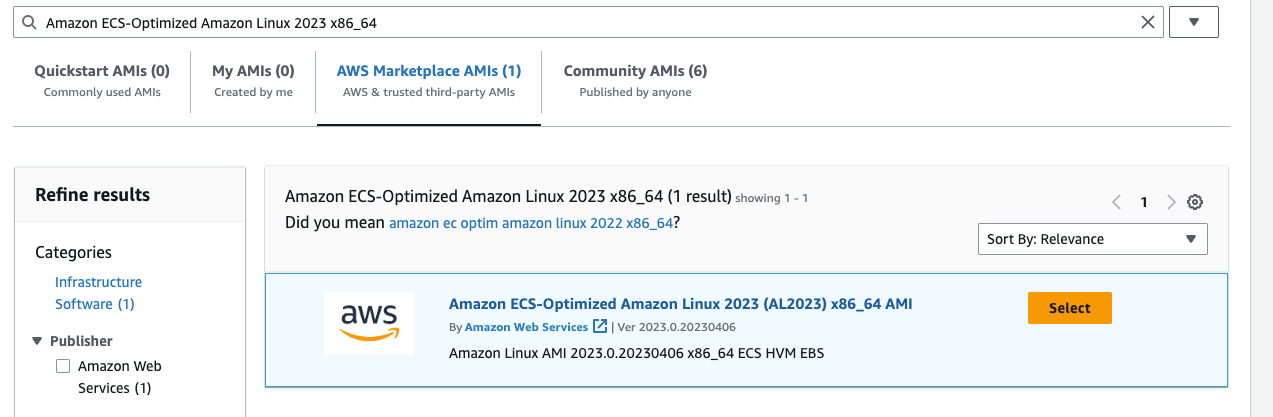
6
For “Instance type” select an appropriate instance type for your workload. For this document, we will use m5zn.xlarge since the ECS agent uses some of the host memory, this instance type is the optimal instance type for use with Limina’s container. A 2 vCPU instance will give about 1.8M words per hour throughput. Image and PDF processing takes a lot more compute power, for which we recommend choosing a larger instance type such as the m5zn.3xlarge. Please refer to Benchmarks for more information.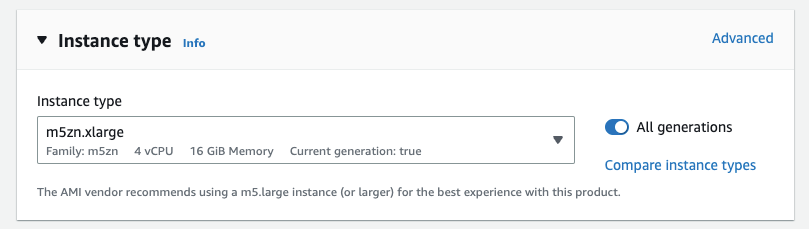
7
For “Key pair (login)” include an SSH key pair if you wish to SSH into your EC2 instance. Key pair creation is beyond the scope of this document, but check Create key pairs for more information.
8
For “Network settings” select “Don’t include in launch template” for “Subnet”.
9
For “Network settings” select “Select existing security group” and then select the security group previously created for the ECS cluster.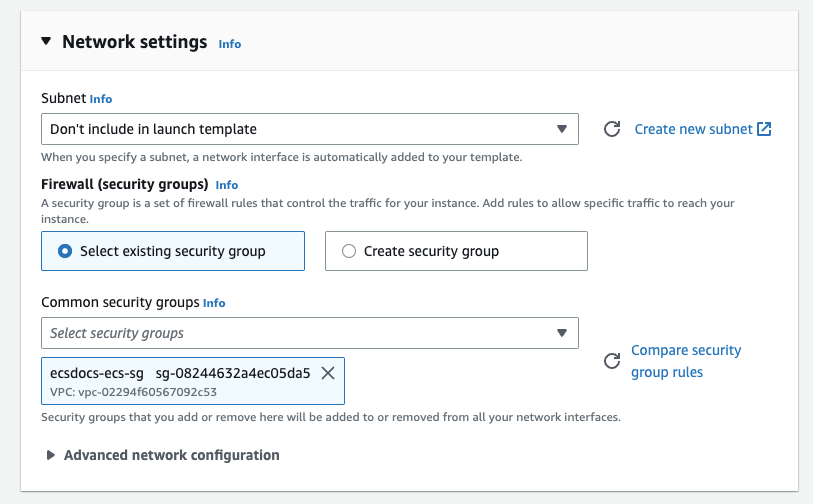
10
For “Store (volumes)” set the size to “50 GiB”.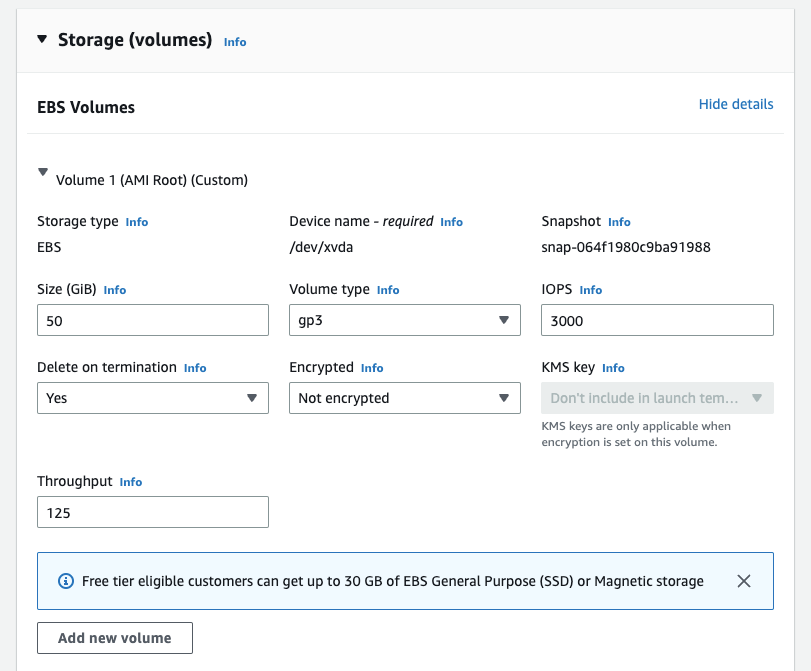
11
Optional - Add tags as required.
12
For “Advanced details” set the “IAM instance profile” to “ecsInstanceRole”.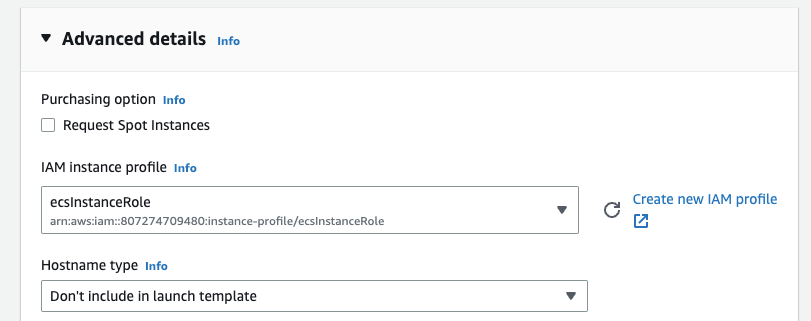
If you do not have an ecsInstanceRole, check Amazon ECS container instance IAM role for more information. It should be automatically created the first time you visit the ECS dashboard.
13
For “Advanced details” also set the “User data - optional” to the following.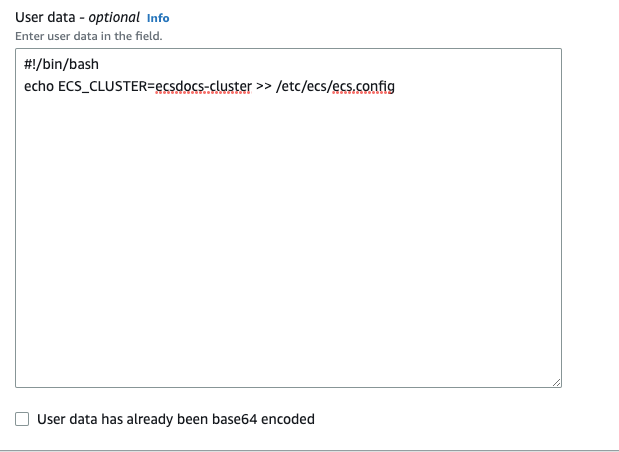
If you plan to change your cluster name in the future, be sure to add the same value here.
Command
9. Create EC2 Target Group
In order to balance load across multiple ECS tasks, an EC2 target group is required.1
Navigate to the “EC2” dashboard and select “Target Groups” from the left menu.
2
Click “Create target group”.
3
For “Basic configuration” select “IP addresses”.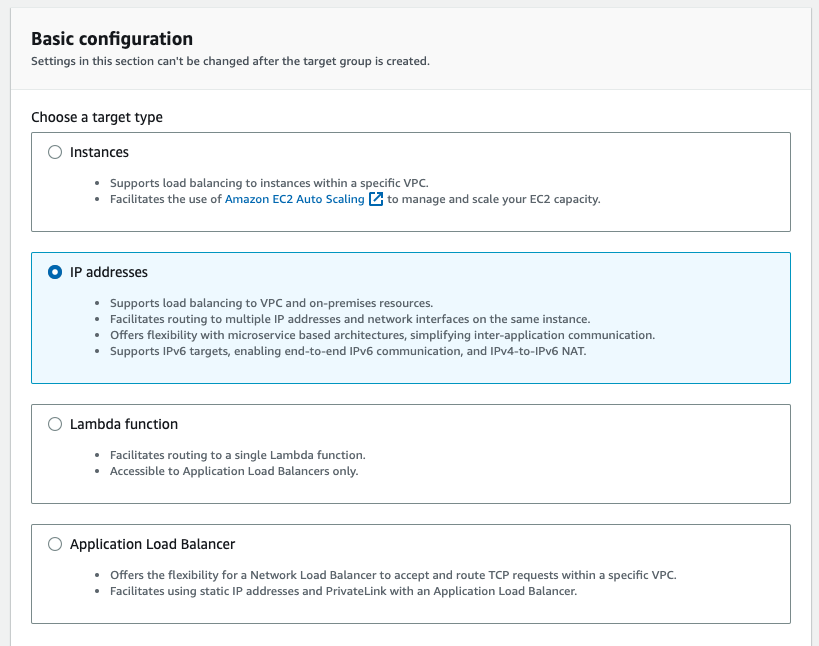
4
Enter a target group name.
5
Select the protocol “HTTP” and change the port to “8080”.
6
For “IP address type” leave the default of “IPv4”.
7
For “VPC”, select the previously created VPC.
8
Leave the “Protocol version” default of “HTTP1”.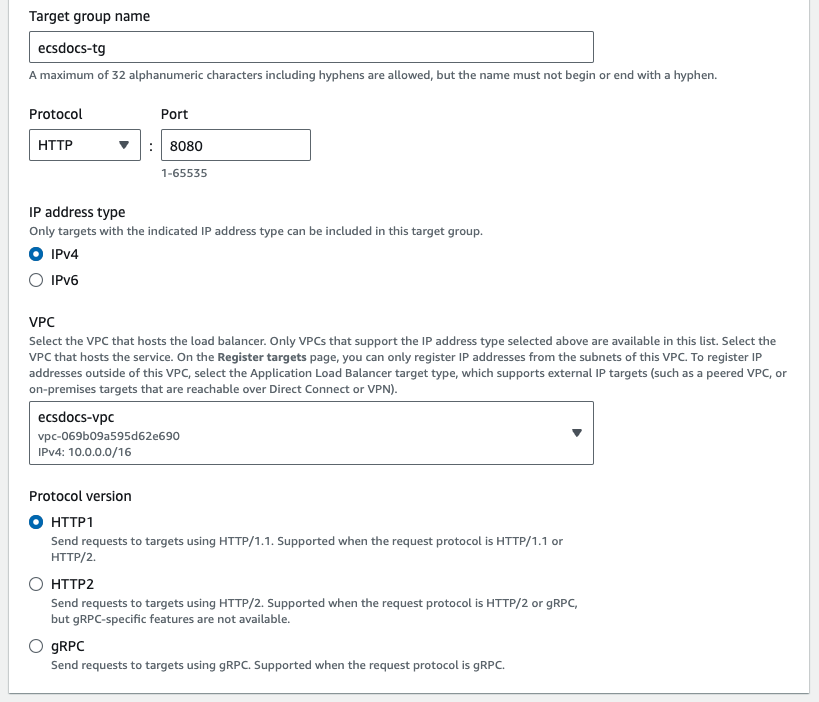
9
For “Health check protocol” leave the default of “HTTP”.
10
For “Health check path” enter 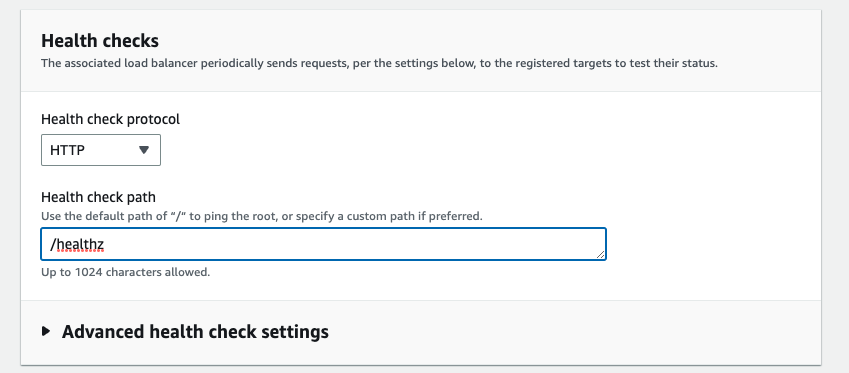
/healthz.11
Optional - For “Tags - optional” add any relevant tags.
12
Click Next.
13
Skip registering targets and click “Create target group”.
10. Create Load Balancer
In order to balance load across multiple ECS cluster tasks, a load balancer is required.1
Navigate to the “EC2” dashboard and select “Load Balancers” from the left menu.
2
Click “Create load balancer”.
3
For “Load balancer types” select “Application Load Balancer” and click “Create”.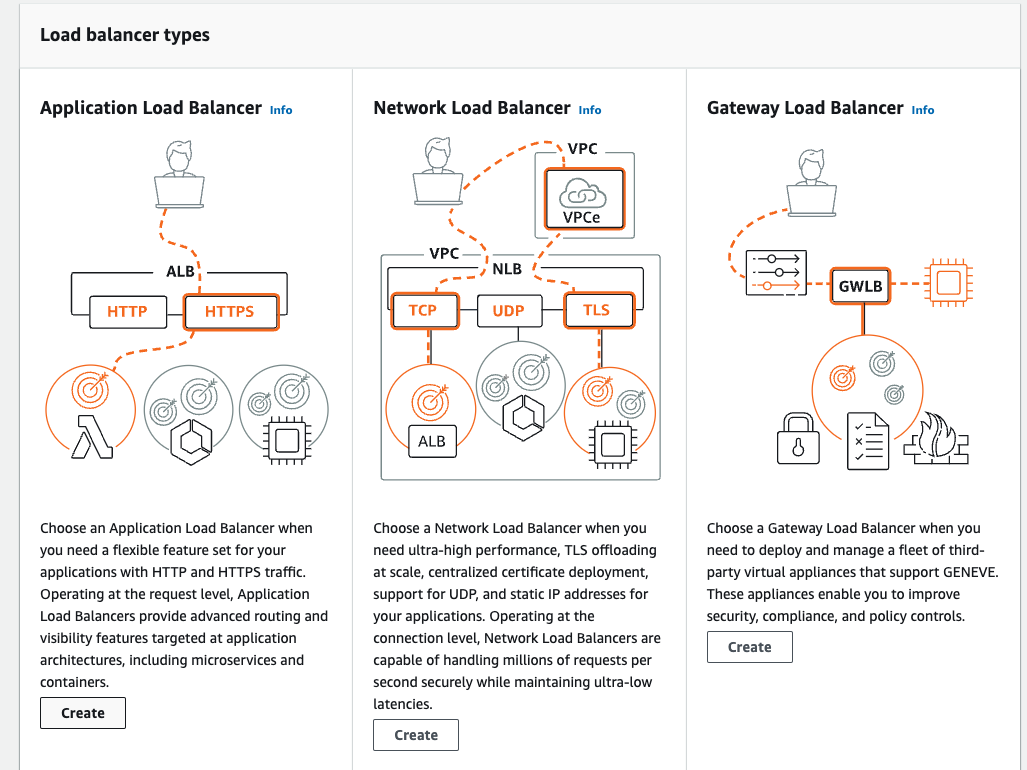
4
For “Basic configuration” enter a unique name for the load balancer.
5
If you plan on protecting the load balancer with an API Gateway, for “Scheme” select “Internal”. Otherwise select “Internet-facing”.
6
Leave the default “IP address type” of “IPv4”.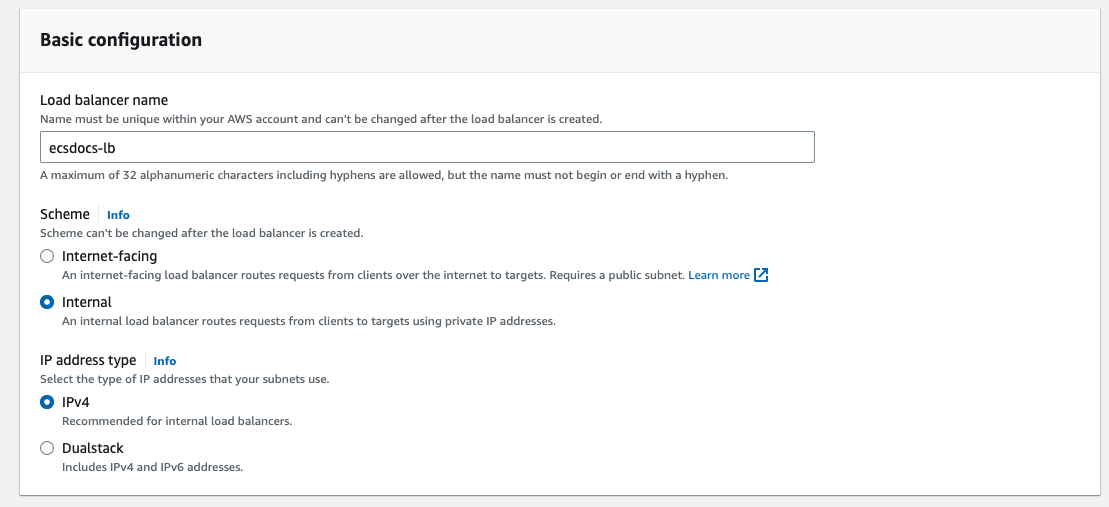
7
For “Networking” select the VPC created in a previous section.
8
Check the box beside each availability zone and select the appropriate subnet depending on if you are deploying Internet-facing or Internal.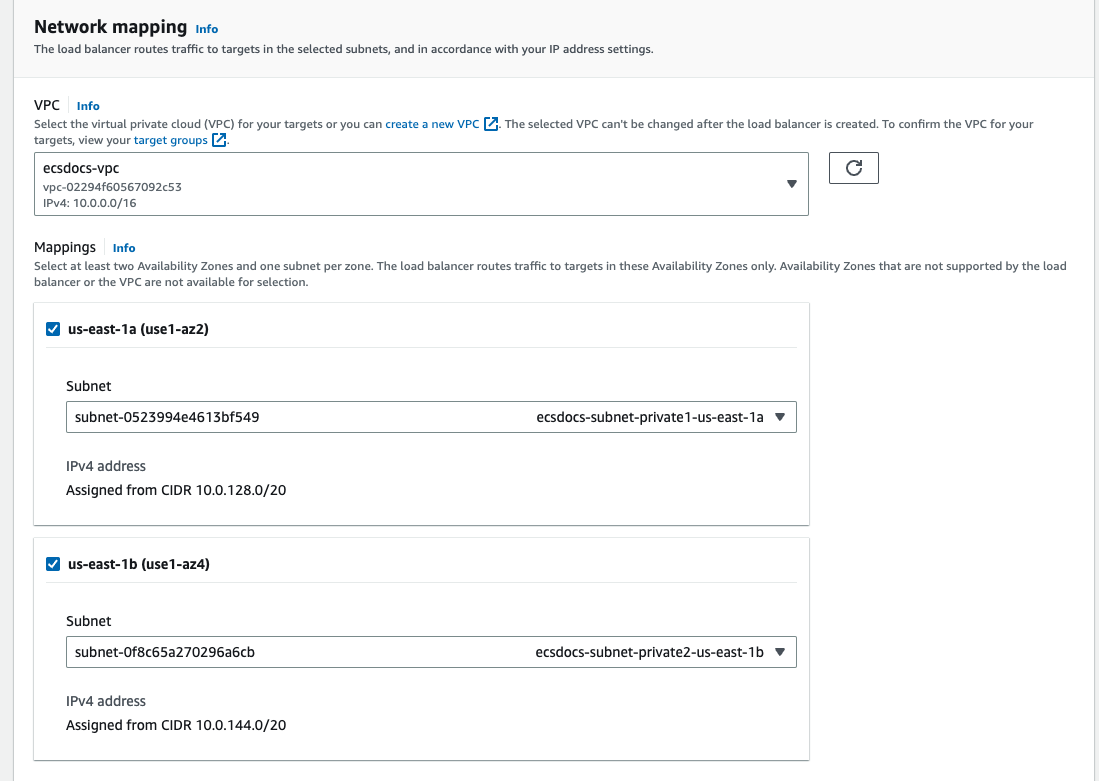
9
For “Security groups” select the previously created security group for the load balancer.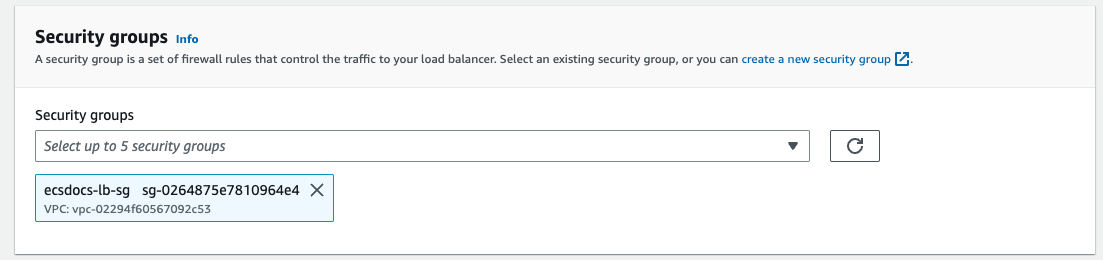
10
For “Listeners and routing” under “Protocol” select “HTTP” and change the “Default action” to the target group created in a previous section.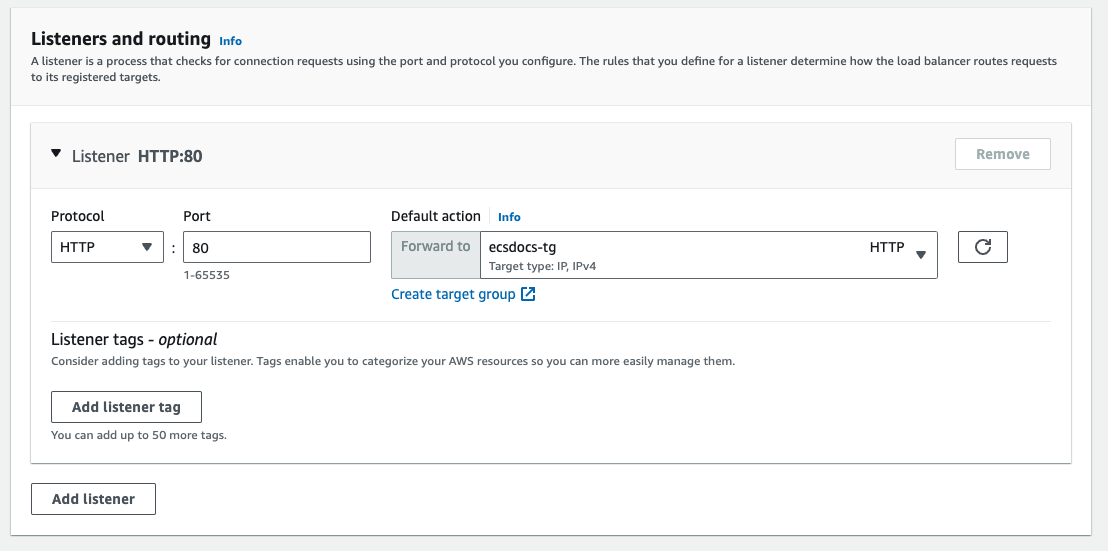
For production environments, it is recommended to provision SSL certificates, especially in Internet-facing scenarios. Creation and maintenance of SSL certificates are beyond the scope of this document. Check Create an HTTPS listener for your Application Load Balancer for more information.
11
Optional - For “Add-on services - optional” and “Load balancer tags - optional” select appropriate settings.
12
Review the summary and then click “Create load balancer”.
11. Create Auto Scaling Group
In order to use EC2 instances as hosts for the ECS cluster follow the steps below.1
Navigate to the “EC2” dashboard and select “Auto Scaling Groups” from the left menu.
2
Click “Create an Auto Scaling group”.
3
Enter a name and select the launch template created in the previous step.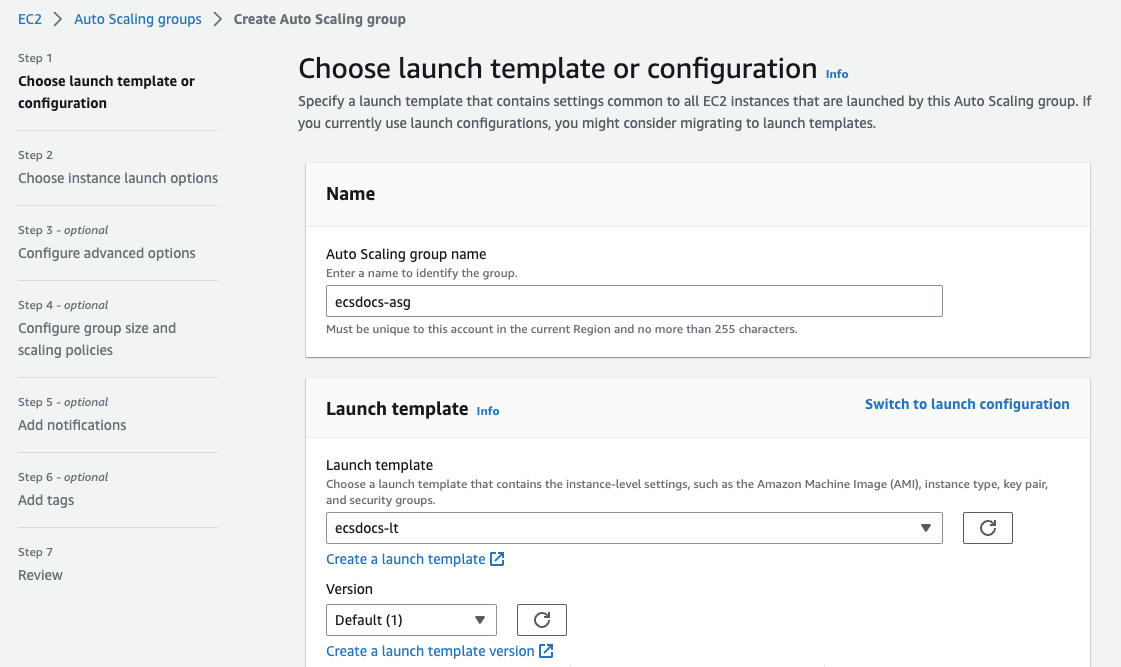
4
Click “Next”.
5
For “Network” select the VPC created previously.
6
Select the private subnets created in the previous steps.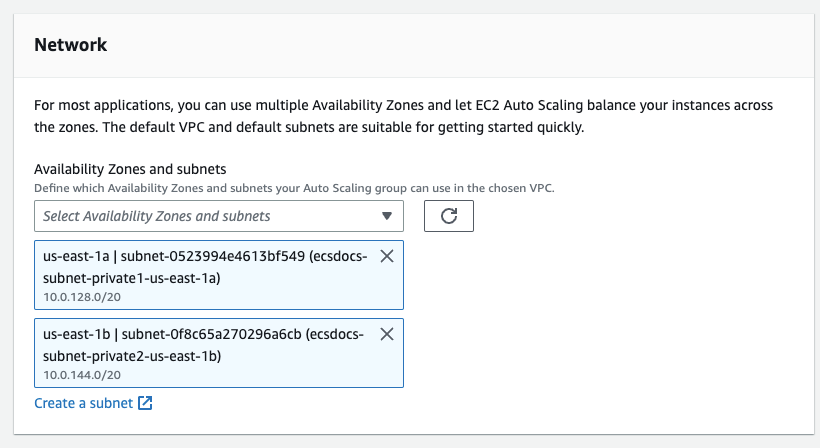
7
Click “Next”.
8
For “Load balancing” select “No load balancer”.
We will be using the load balancer created in a previous section for the ECS Service Tasks, not for the EC2 instances directly.
9
For “VPC Lattice integration options” leave the default “No VPC Lattice service”.
10
Optional - For “Additional settings” optionally enable CloudWatch monitoring and instance warmup as required.
11
Click “Next”.
12
For “Group size - optional” set the “Minimum capacity” to “0” and leave the other defaults at 1.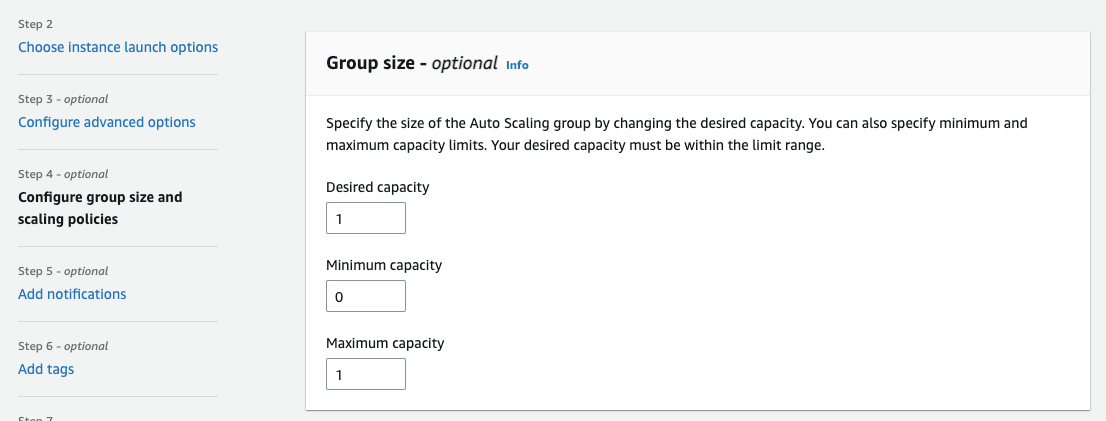
These settings are heavily dependent on your workload and performance, and must be tuned appropriately.
13
Optional - For “Scaling policies - optional” leave the default of “None” or optionally create a scaling policy.
14
Optional - For “Instance scale-in protection - optional” leave the default of unchecked or optionally enable scale in protection.
15
Click “Next”.
16
Optional - For “Add notifications - optional” configure an SNS topic.
17
Click “Next”.
18
Optional - For “Add tags - optional” add any relevant tags.
19
Click “Next”.
20
Review the configuration and click “Create Auto Scaling group”.
12. Create VPC NAT Gateway
If you have created a non-default VPC, your EC2 instances will not have access to the Internet from the private subnet. Alternatively, you can create an Internet Gateway. Check Connect to the internet using an internet gateway for more information. Consult with your security team to further restrict the instances’ egress network access.1
Navigate to the “VPC” dashboard and select “NAT gateways” from the list on the left.
2
Click “Create NAT gateway”.
3
Enter a name and select one of the public subnets created in a previous step.
If you select a private subnet, the NAT gateway will not have access to Internet traffic.
4
Select “Connectivity type” of “Public”.
5
Click “Allocate Elastic IP” to create and allocate a public-facing IP address.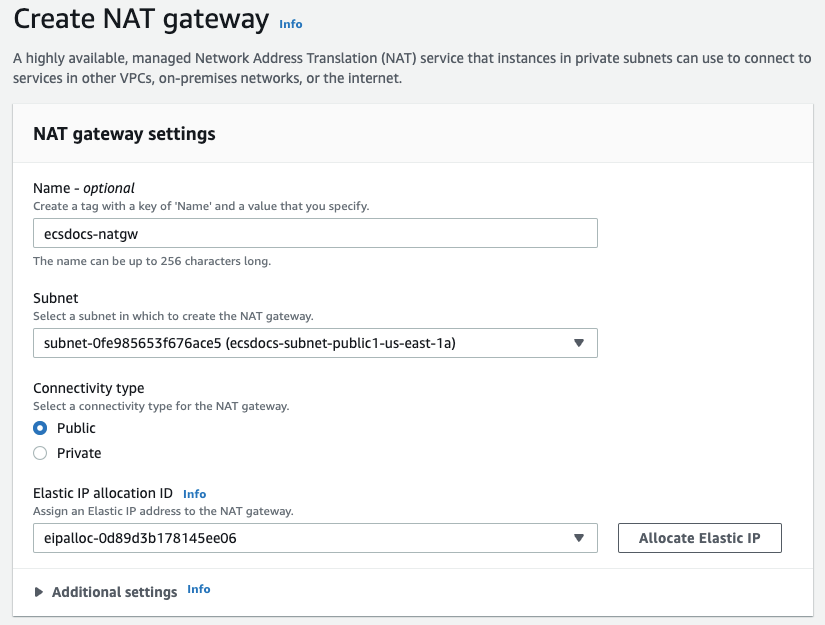
6
Optional - Add tags.
7
Click “Create NAT gateway”.
8
Navigate to the “VPC” dashboard and click on “Route tables” from the list on the left.
9
Click on one of the private subnets created in an earlier step and select “Routes” from the bottom section.
10
Click “Edit routes”.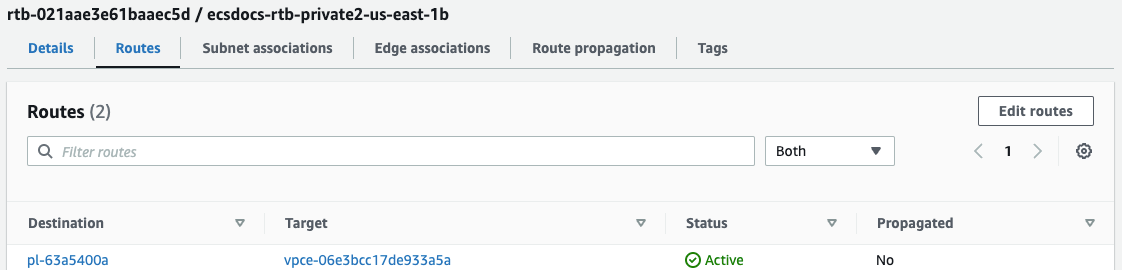
11
Click “Add route”.
12
For “Destination” select
0.0.0.0/0 for all outbound access.13
For “Target” select “NAT Gateway” and select the previously created gateway from the steps above.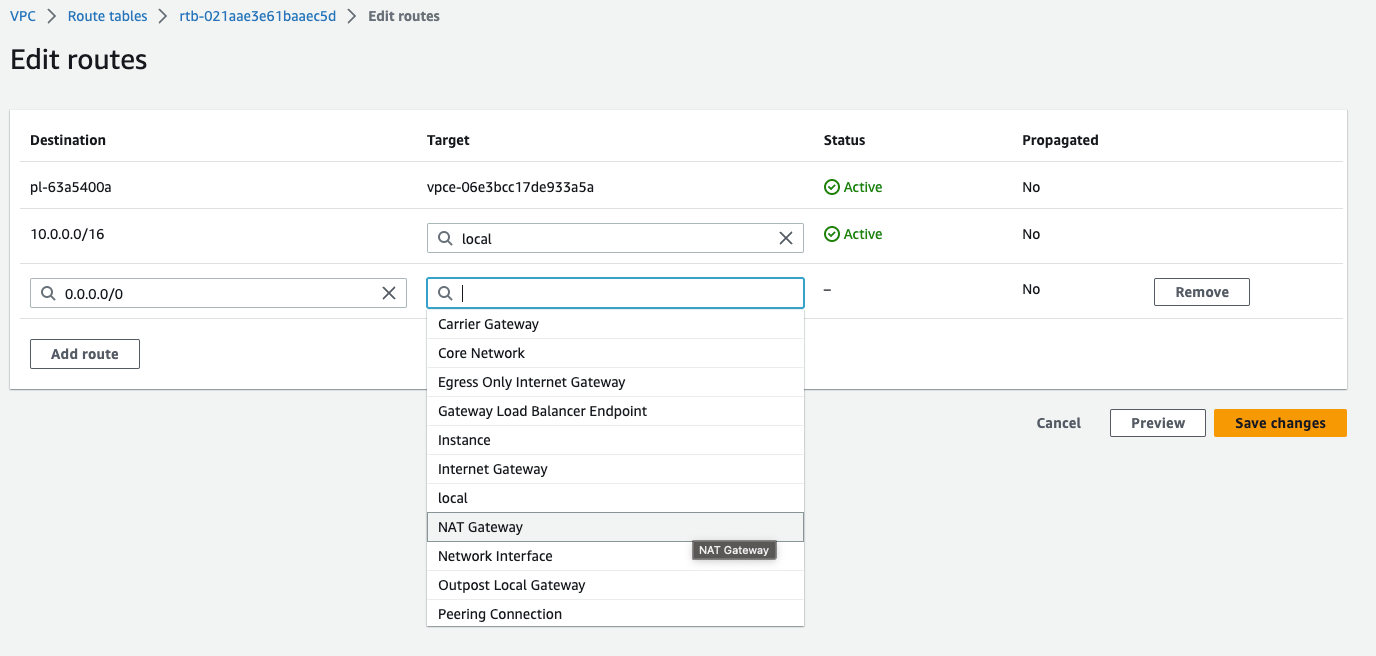
14
Click “Save changes”.
15
Repeat adding the NAT Gateway route for the other private subnet.
For environments with high availablity requirements, consider adding a second NAT Gateway in an alternate availability zone.
13. Create ECS Cluster
1
Navigate to the “Elastic Container Service” dashboard and select “Clusters” from the left side. Click “Create Cluster”.
2
Enter the cluster name.
You must specify the same cluster name as you entered in the EC2 Launch Template - User Data section in a previous step.
3
Select the VPC where you would like to deploy the cluster.
4
Select the private subnets created in a previous step.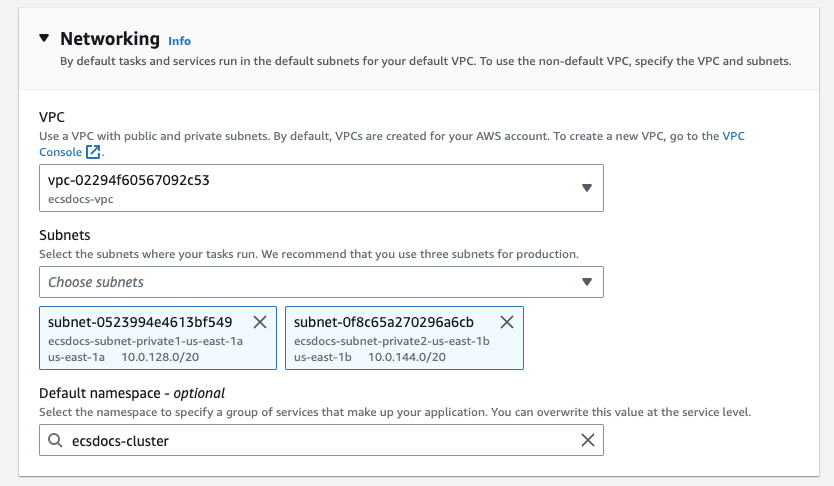
5
For “Infrastructure”, check the “Amazon EC2 instances” checkbox.
“AWS Fargate (serverless)” is only suitable for cost-optimized deployments.
6
For “Amazon EC2 instances”, select the “Auto Scaling group” we created in the previous optional step.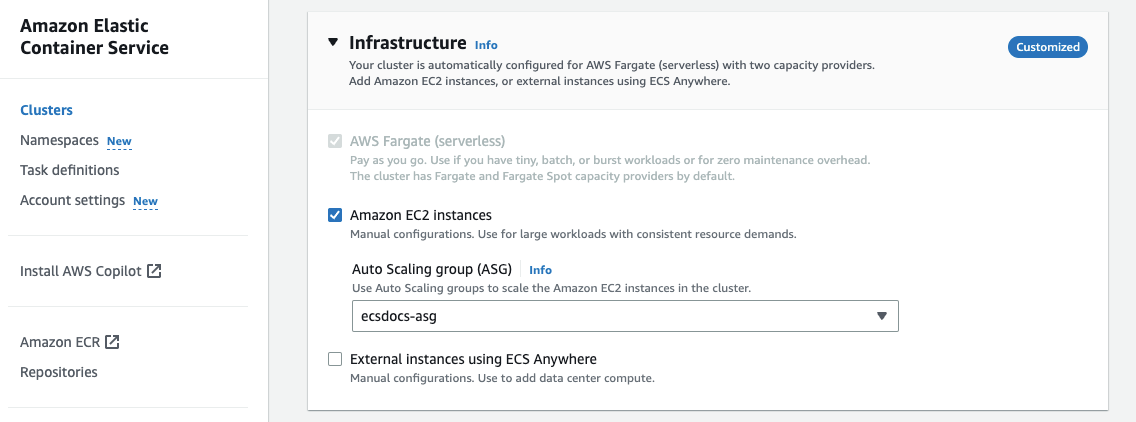
7
Optional - For “Monitoring - optional” enable container insights if you would like to monitor usage of container resources. This is recommended for production configurations.
8
Optional - For “Tags - optional” add any relevant tags.
9
Click “Create”.
14. Create Bastion and Create License
In order to add a file to the new EFS file system and troubleshoot any clustering issues, we will create an EC2 instance to serve as our Bastion Host.1
Navigate to the “EC2” dashboard and click “Launch instance”.
2
Enter a name for the EC2 instance.
3
For “Application and OS Images” leave the default “Amazon Linux 2023 AMI”.
4
For “Architecture” select “64-bit (x86)”.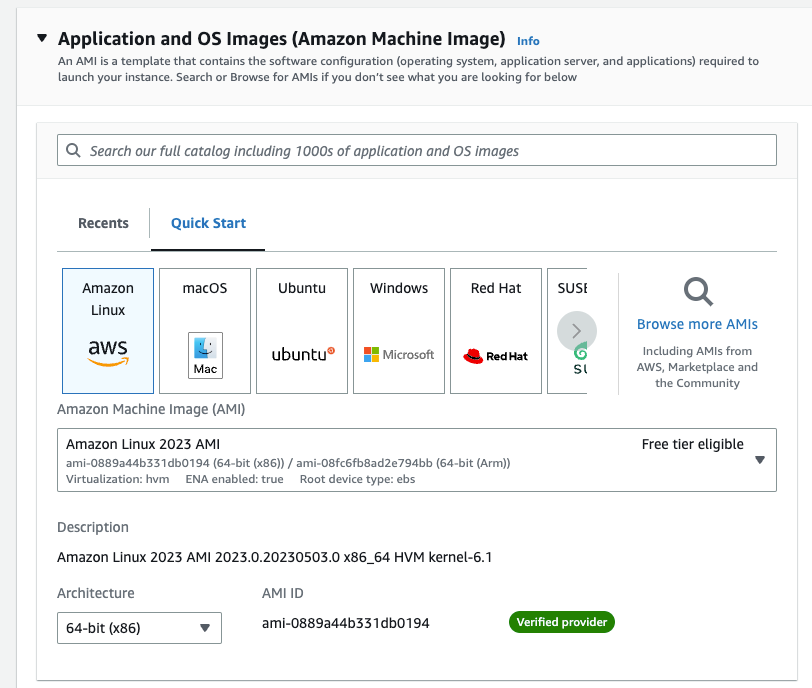
5
For “Instance type” leave the default “t2.micro”.
6
For “Key pair” select an appropriate SSH key to connect to the EC2 instance.
Creating an SSH key is beyond the scope of this document. Check Create key pairs for more information.
7
For “Network settings” click “Edit”.
8
Change the VPC to the one created in a previous section.
9
For “Subnet”, select an available subnet that is publicly accessible and has an EFS mount created in a previous step.
10
For “Auto-assign public IP” select “Enable”.
11
For “Firewall (security groups)” select “Select existing security group” and select the previously created security group for the bastion host.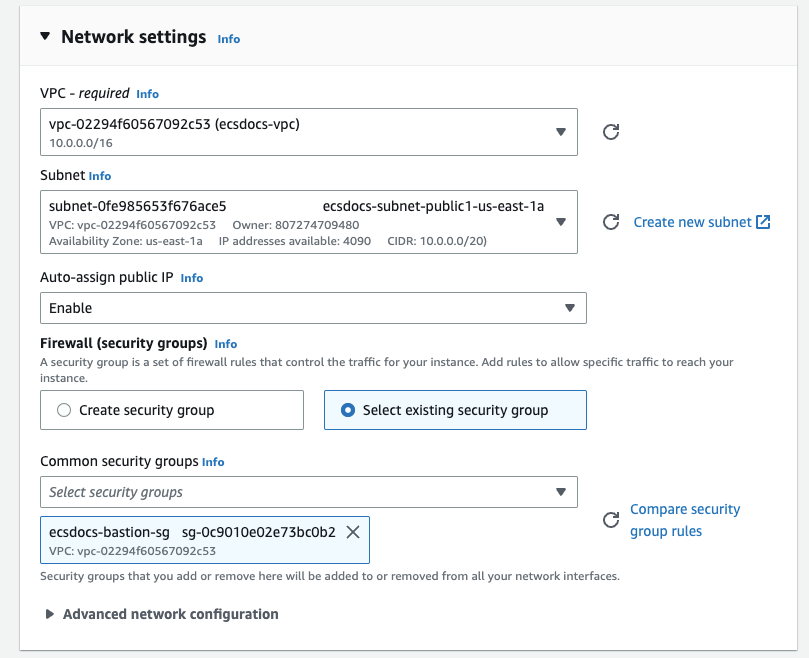
12
For “Configure storage” click “Advanced”.
13
For “File systems” click “Show details”.
14
Click “Add shared file system”.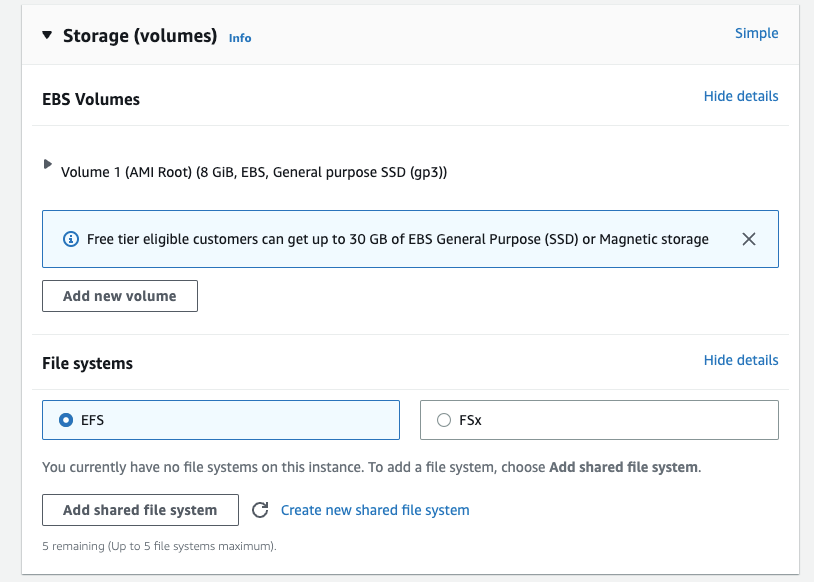
15
For “File system” select the EFS file system created in the previous step.
16
Uncheck “Automatically create and attach security groups”. Leave all other defaults.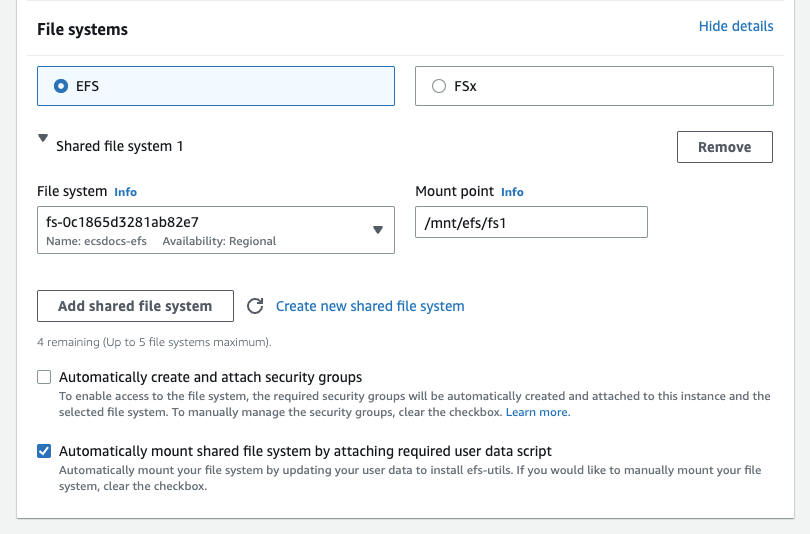
17
For “Summary” review the information and click Launch instance.
18
Navigate to the “EC2” dashboard and click “Instances” from the left, and then locate the newly created instance.
19
Once the instance has started, log into it via SSH. The mechanism to do this is beyond the scope of this document. Check Connect to your Linux instance using SSH for more information.
20
Navigate to the EFS share and create a license file using the following commands.
Command
21
Paste the contents of your license.json file into the file.
22
Run the
exit command from the SSH terminal to close the session.There are multiple ways to manage files on an EFS filesystem, which are beyond the scope of this document.
15. Create ECS Task Definition
In order to run the Limina De-identification container, ECS requires a task definition to find the image, allocate the correct resources, etc. Follow the steps below to create the ECS Task Definition.1
From the Elastic Cluster Service dashboard, select “Task definitions” and click “Create new task definition”.
2
Enter a task definition family name.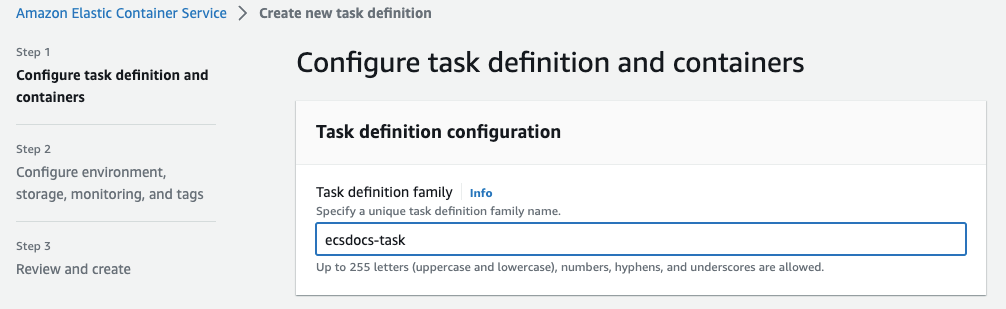
3
For Infrastructure requirements uncheck AWS Fargate and check Amazon EC2 instances.
4
Leave the Operating system/Architecture as “Linux/X86_64” and Network mode as “awsvpc”.
5
For Task size set the CPU to “1 vCPU” and Memory to “14 GB”.
6
For Task role and Task execution role select “ecsTaskExecutionRole”.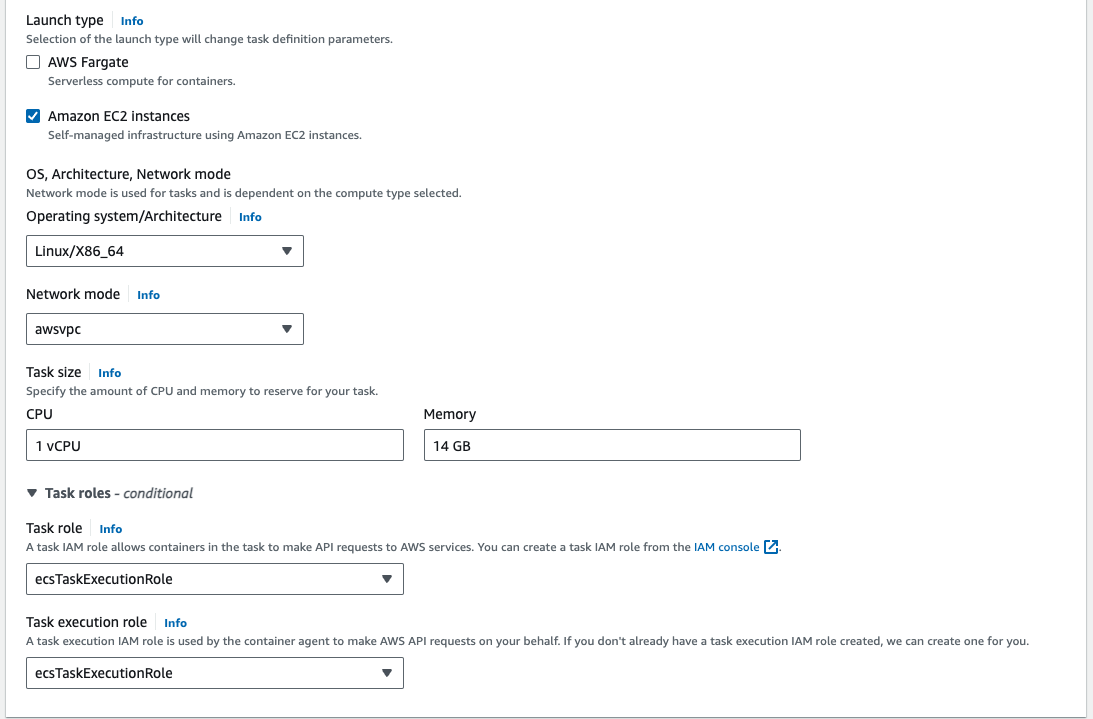
If the ecsTaskExecutionRole does not exist, follow the Amazon ECS task execution IAM role guide.
7
For Container - 1, enter a Name and the Image URI created in a previous step, and set Essential container to “Yes”.
8
Enter a Container port of “8080”, Protocol of “TCP”, and App protocol of “HTTP”.
9
Leave the Resource allocation limits - conditional empty. We will allow the container to consume all resources available to the task.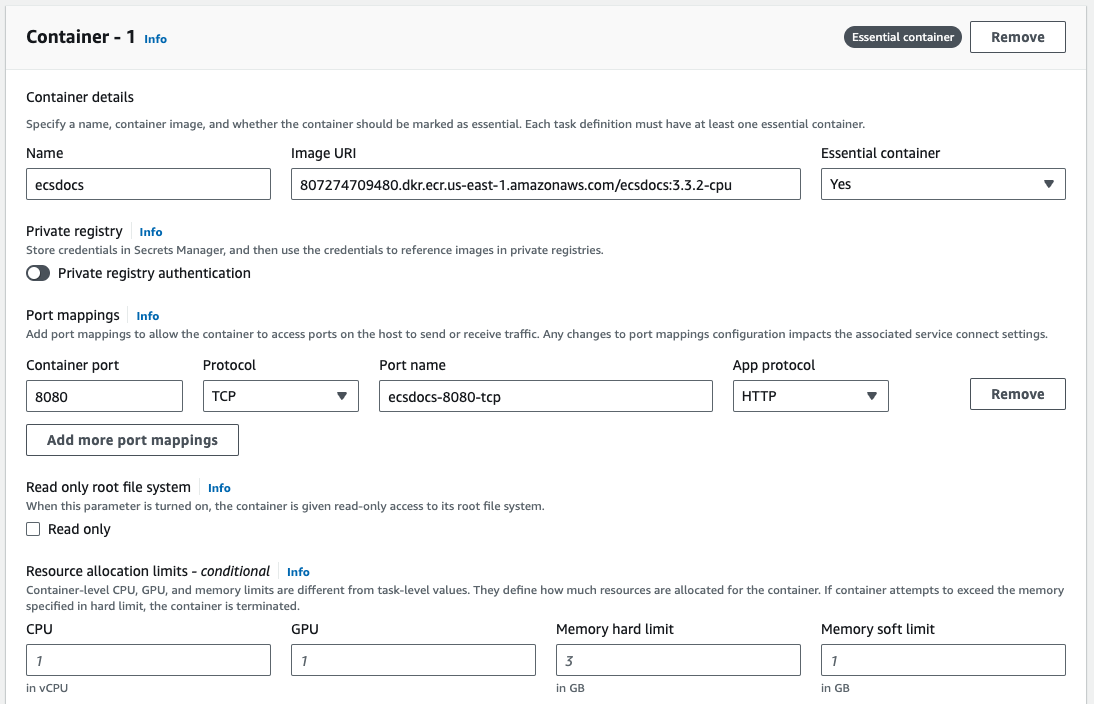
10
For Environment variables - optional, leave the section empty.
11
For Logging, optionally enable log collection. Sample values are depicted below.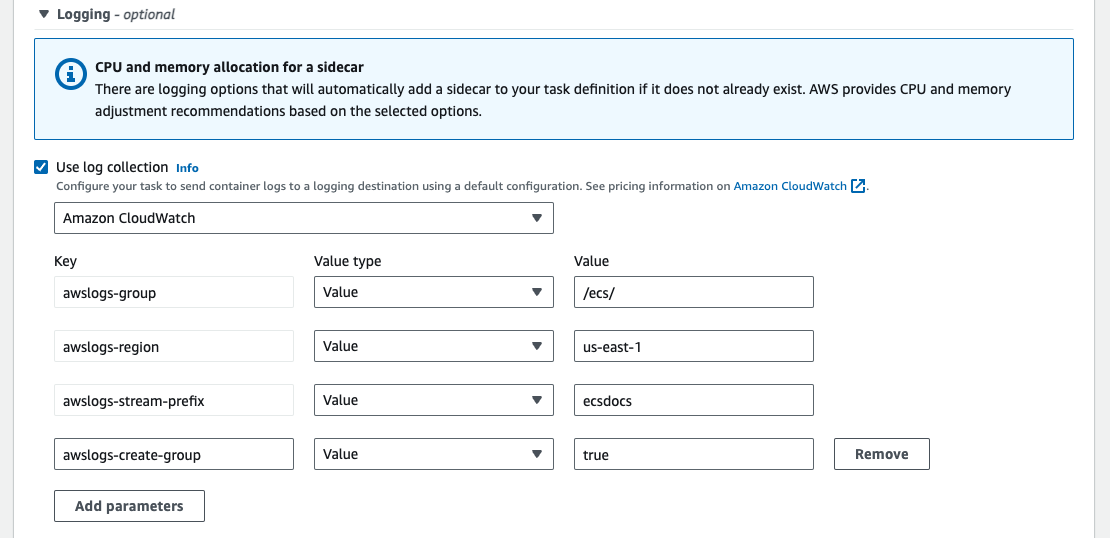
If you plan to have CloudWatch Log Groups automatically created, you must add the “CloudWatchLogsFullAccess” policy to the “ecsTaskExecutionRole”. Follow the Adding and removing IAM identity permissions guide.
12
For HealthCheck, enter the following details. The command is 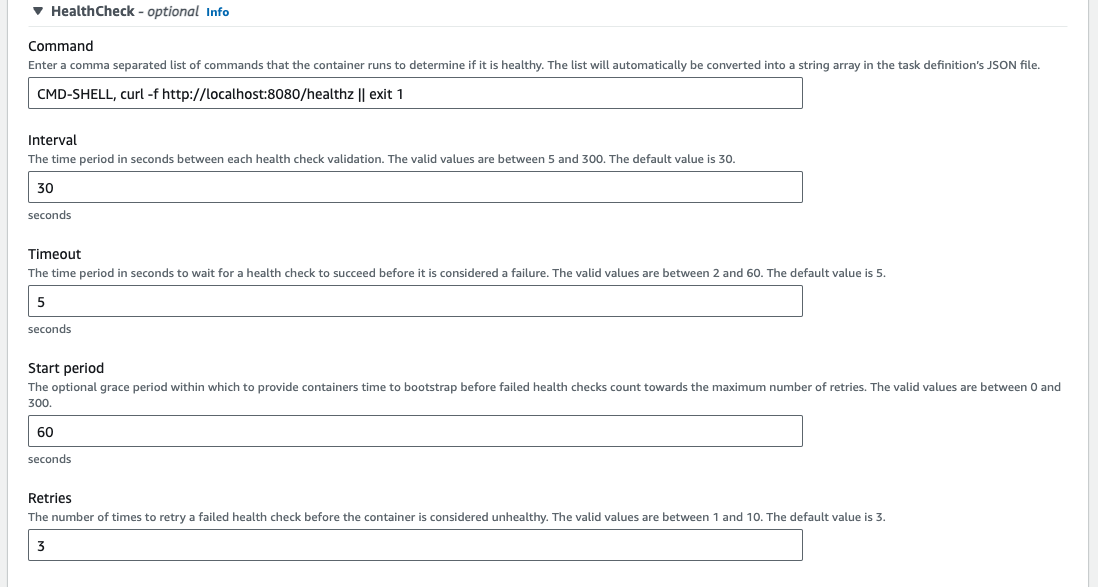
CMD-SHELL, curl -f http://localhost:8080/healthz || exit 1 for the health check, “Interval” is 30, “Timeout” is 5, “Start period” is 60, and “Retries” is 3.13
Leave Container timeouts, Docker configuration, Resource limits (Ulimits), and Docker labels empty.
14
For storage, select “EFS” for the Volume type, enter a Volume name, select the File system ID created previously, and leave the Root directory and Access point ID as default.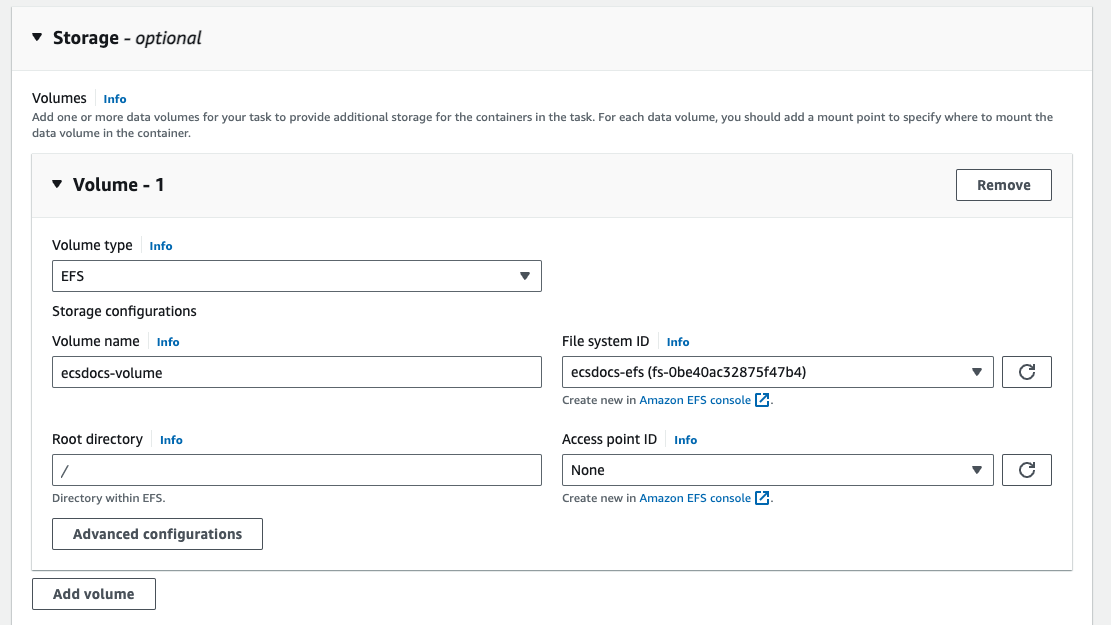
15
Click “Add mount point”.
16
Select the Container and Source volume created previously, enter a Container path of 
/app/license and check the Read only box.17
For Monitoring and Tags, optionally set your desired configuration.
18
Click create.
Container Definition
16. Create ECS Service
In order to run the Limina De-identification container in the ECS Cluster, we will define an ECS Service to maintain a healthy number of containers.1
Navigate to the “Amazon Elastic Container Service > Clusters” dashboard, select the previously created cluster.
2
From the “Services” table, click the Create button.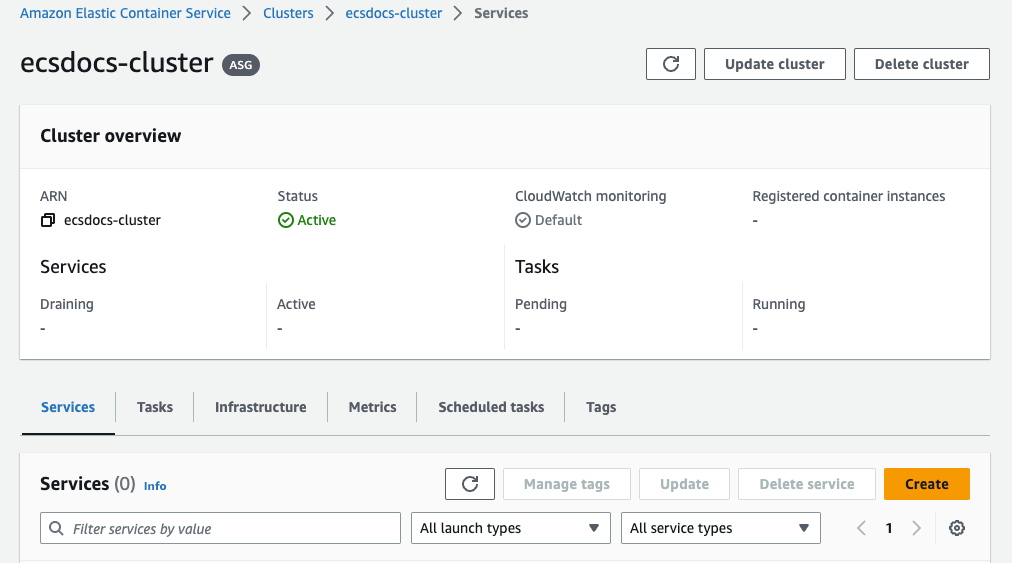
3
For “Environment”, select the “Capacity provider strategy” compute option to use the EC2 underlying infrastructure.
4
Leave the “Capacity provider strategy” with the defaults.
5
For “Deployment configuration”, select the “Service” Application type, the task definition family previously created, and enter a Service name.
6
Optional - Specify values for “Desired tasks”, “Min running tasks %”, “Max running tasks %”, and “Deployment failure detection” settings. For the purposes of this document, we will leave the “Desired tasks” at 1, and the other options as default.
7
For “Networking”, under “Subnets”, remove the public subnets.
8
For “Networking”, under “Security group” remove the default security group and add the previously created security group for ECS.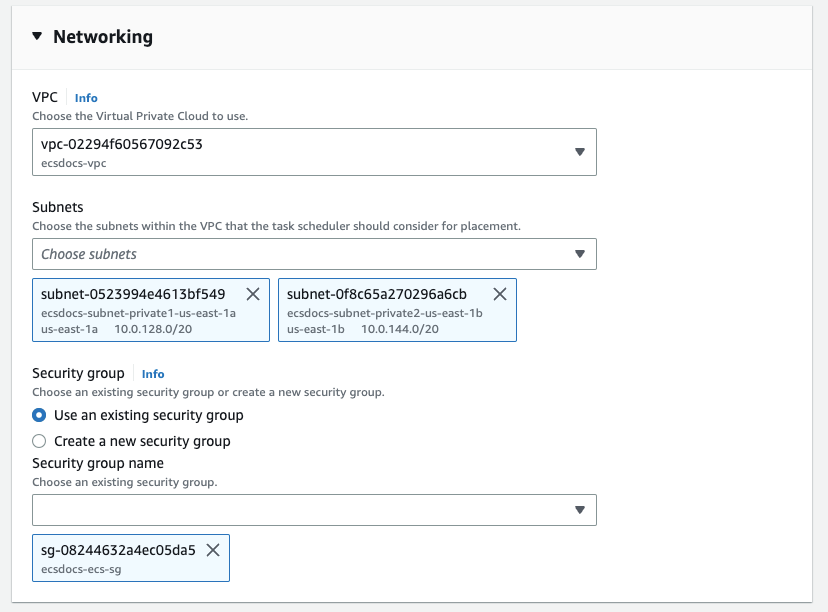
9
For “Load balancing - optional” leave the default “Load balancer type” to “Application Load Balancer”.
10
For “Application Load Balancer” select “Use an existing load balancer”.
11
For “Load balancer” select the load balancer created in a previous section.
12
For “Choose container to load balance” leave the default container.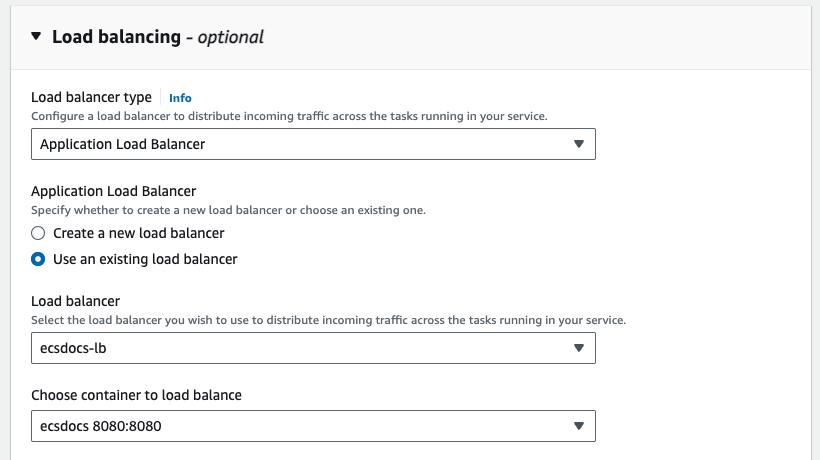
13
For “Listener” select “Use and existing listener” and select the listener created in a previous section.
14
For “Target group” select “Use an existing target group”.
15
For “Target group name” select the target group created in a previous section.
16
Optional - Leave the default “Health check grace period” of 0 or change as desired.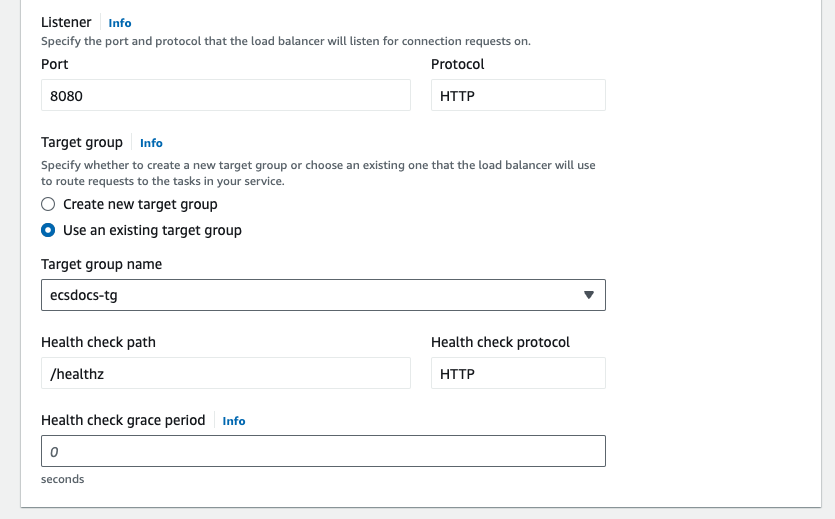
17
Optional - Leave the default “Service auto scaling - optional”.
18
Optional - Leave the default “Task Placement”.
19
Optional - For “Tags - optional” enter any appropriate tags as required.
20
Click Create.
21
Once the service has finished deploying, check the Tasks tab to find the deployed ECS task instance.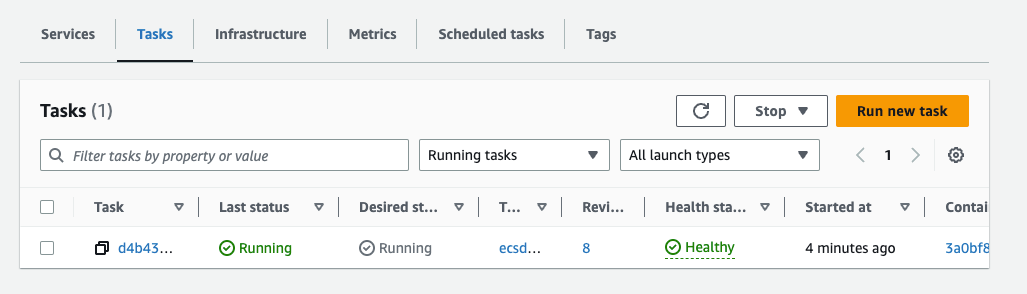
22
Click on the task and scroll down to the “Configuration” section of the task to find the “Private IP” address.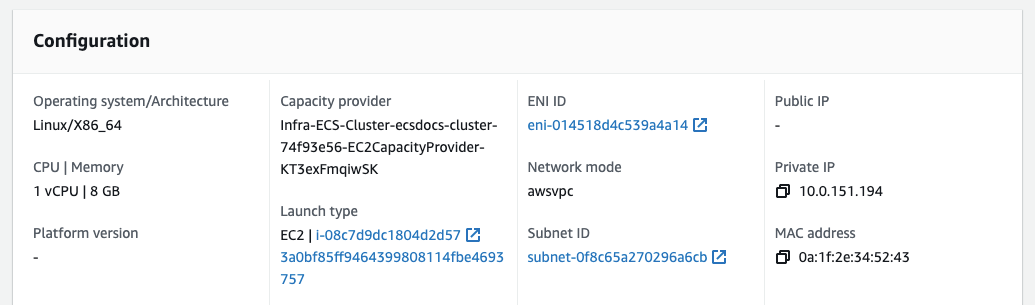
23
Copy the Private IP address.
24
SSH into the Bastion Host created in a previous step.
25
Run the following command to test that the Limina De-identification service is reachable. You should receive a JSON object response which contains the app version, such as below.
curl Command
26
Repeat the steps above for any additional service tasks defined in the cluster.
27
Navigate to the “EC2” dashboard and select “Load Balancers” from the left menu.
28
Select the load balancer created in a previous section.
29
Copy the DNS name from the load balancer.
30
If you deployed an internal-facing load balancer, return to the SSH console for the Bastion Host. If you deployed an internet-facing load balancer, open an SSH prompt on your computer. Run the following command to ensure that the service tasks are reachable via the load balancer.
curl Command